
First launch
What it is for
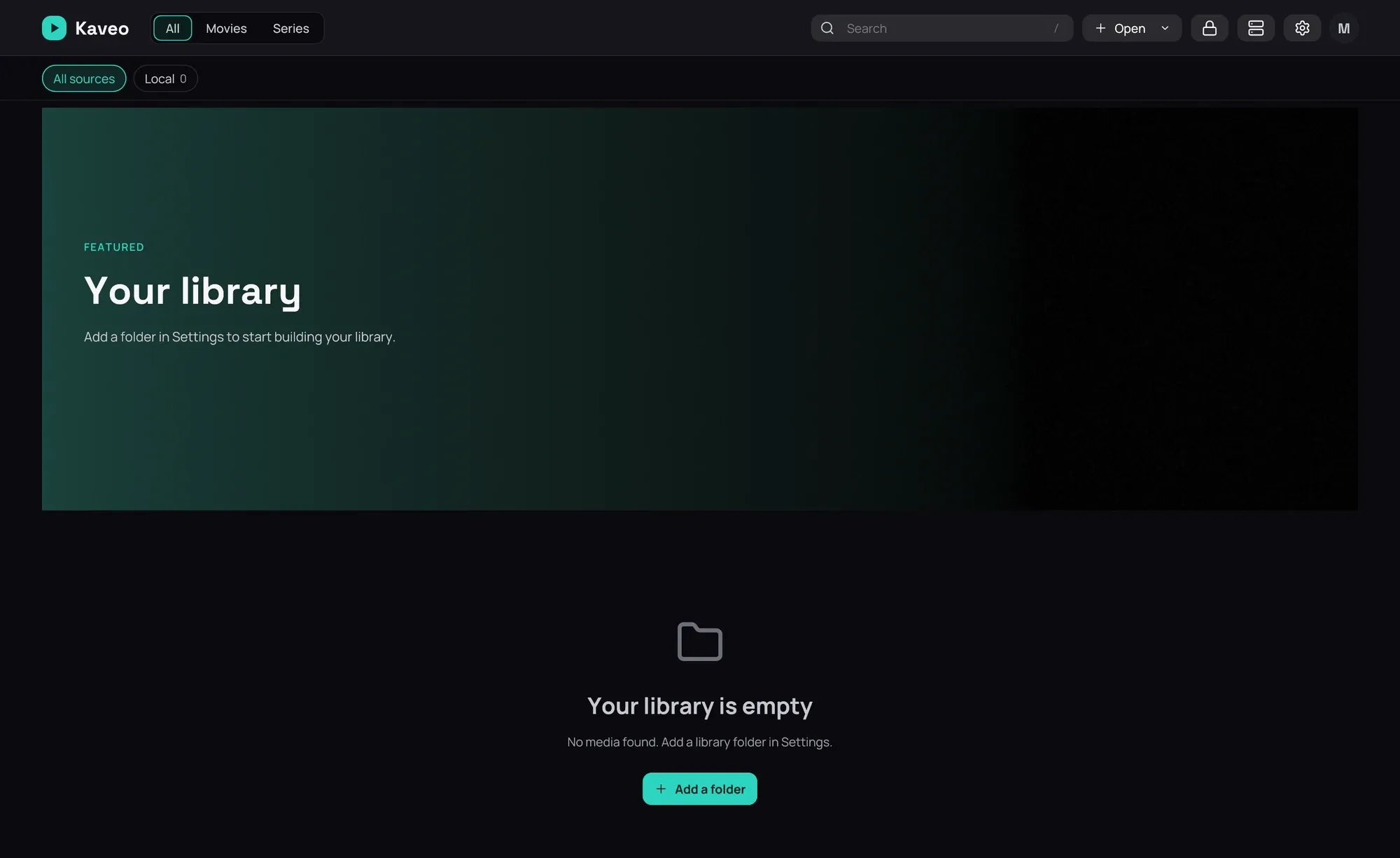
Section titled “What it is for”The first time Kaveo runs there is nothing to show yet — this is how you point it at your films and shows, or just play one file with no library at all.
How to use it
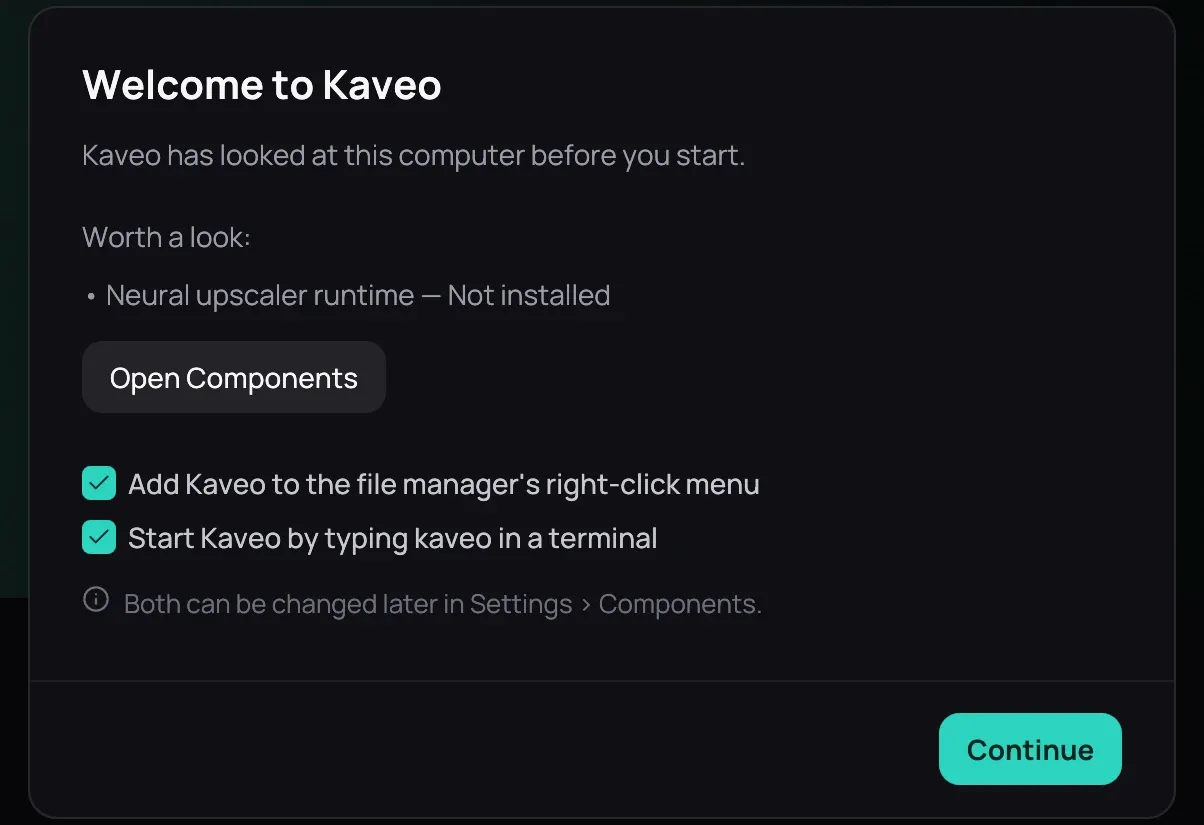
Section titled “How to use it”- Installed from a package, Kaveo first asks for its licence key, then shows Welcome to Kaveo: what is worth a look on this computer, and two ticked boxes, for the right-click menu and a terminal command. Untick either, then click Continue.
- With nothing added, the library screen says Your library is empty — click Add a folder.
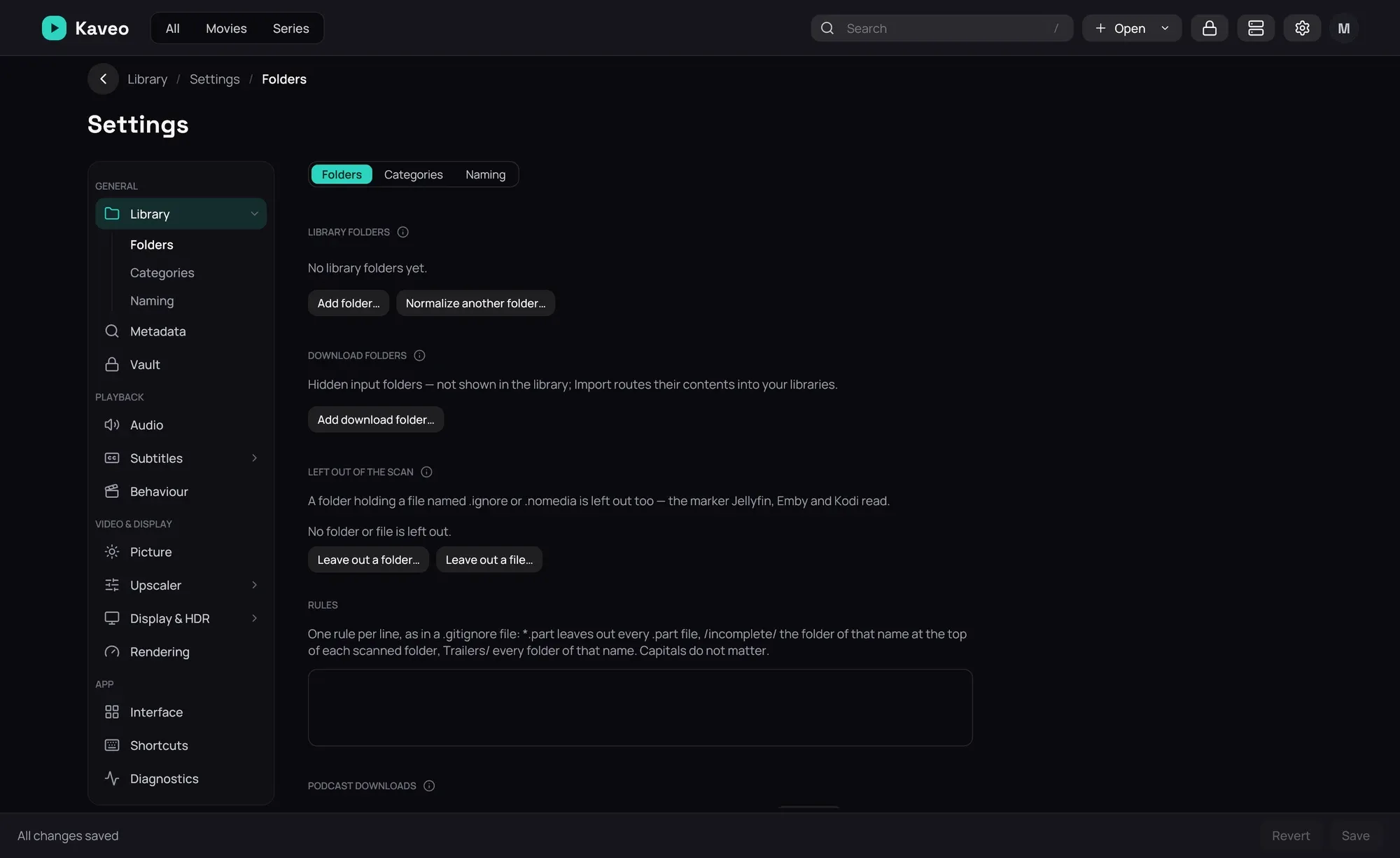
- That opens Settings › Library › Folders; click Add folder… and choose your films’ folder.
- Click Save — titles appear within seconds, and a large folder is refined for a minute after.
- Repeat for another folder, or split your library into kinds first — see Categories.
Good to know
Section titled “Good to know”- Drag a video onto the Kaveo window, or click Open › Open file… in the top bar, to play it right away — no library folder needed. Kaveo never becomes your default video player; its place in your file manager’s right-click menu is the box you ticked or not — see From your file manager.
- A folder can be removed later from the same page; nothing on disk is touched — see Local folders for what that page does.
- See The library home for what the rows and the featured band do once titles appear.