
Player controls
What it is for
Section titled “What it is for”Control playback, and leave the player with or without stopping it.
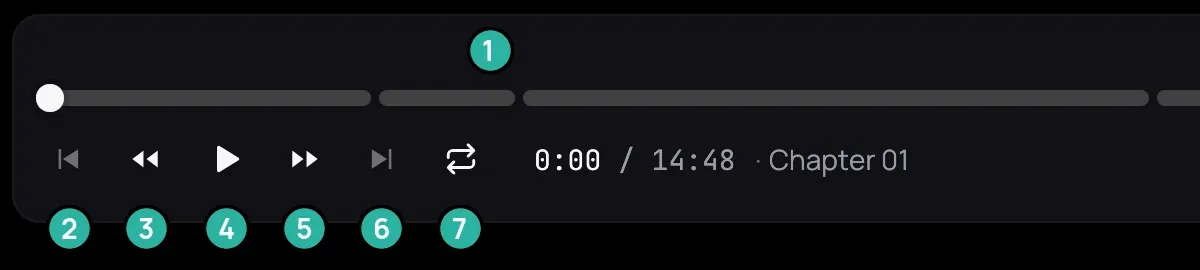
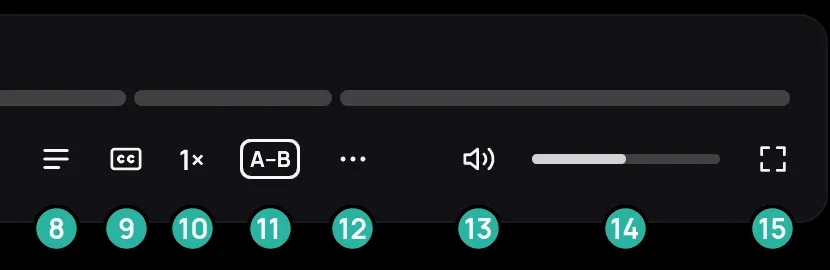
- The timeline: click or drag to jump; its marks are chapters.
- Previous.
- Back 10 seconds.
- Play or pause.
- Forward 10 seconds.
- Next.
- Repeat.
- Chapters.
- Audio and subtitle tracks.
- Speed.
- Loop A–B.
- More: the right-click menu.
- Mute.
- Volume.
- Fullscreen.
How to use it
Section titled “How to use it”The playback bar
Section titled “The playback bar”- Move the mouse to bring up the bar.
- Rest the pointer on the timeline, or drag it, to see that moment: a picture, the time and its chapter’s name.
Leaving the player
Section titled “Leaving the player”
- Click the arrow at the top left, or press Esc: the film stops, saved, and its page opens (an episode’s series, a song’s album). Each step of the path beside the arrow opens its place.
- Or right-click and choose Settings: the film keeps playing.
- Click the pill beside Open to return to the player, or its cross to stop the film.
Good to know
Section titled “Good to know”- A right-click on either 10-second button also steps to the previous or next item — see Next episode and queue.
- A narrow window drops some bar buttons; the right-click menu keeps them.
- The position is saved on closing, on every pause and every 10 seconds (a private title: on pause only). When you open the film again, Resume from 12:34 starts 30 seconds before the point where you stopped.