
Editing a copy of a video
What it is for
Section titled “What it is for”Keep only part of a video, turn a clip filmed sideways, or remove its sound. Kaveo saves the result as a new file, or replaces the original if you ask. Nothing is re-encoded, so the picture and the sound stay as they were.
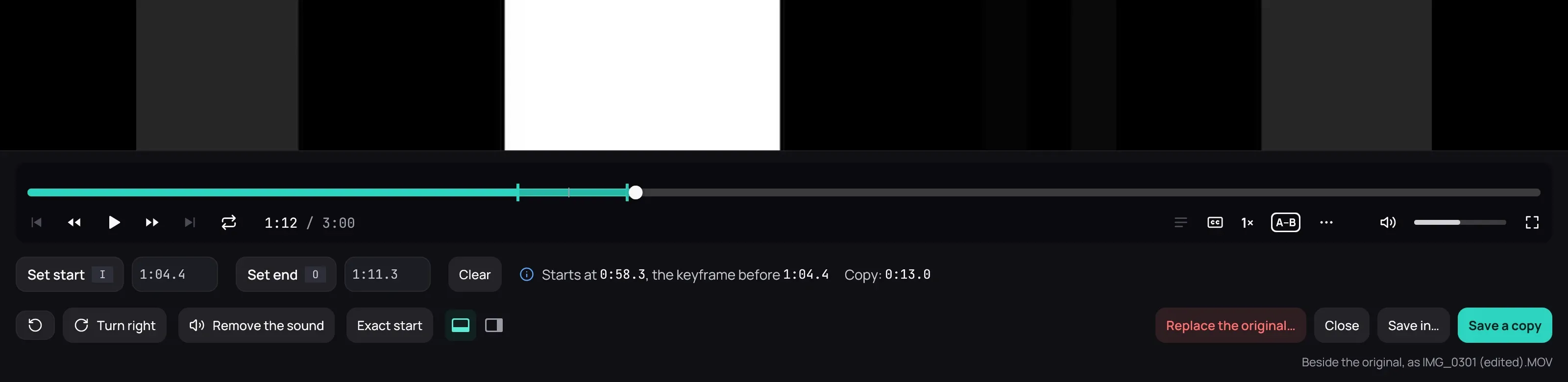
How to use it
Section titled “How to use it”- Right-click the picture and choose Edit a copy…, or press T. From the library, right-click a video and choose Edit a copy….
- Where the copy should start, click Set start or press I; the same with Set end and O. You can also type a time, such as 1:15.
- Turn it or Remove the sound if you want; the player shows the result.
- Click Save a copy. It is saved beside the original, with (edited) in its name.
Good to know
Section titled “Good to know”- A copy starts on the nearest keyframe before your mark, shown in the panel. Exact start begins on the very frame by re-encoding with an FFmpeg already on your computer: slower, with a tiny loss of quality.
- Turning works for MOV and MP4, and for any file with Exact start.
- Save in… puts the copy in another folder.
- Replace the original… deletes the original and puts the edited video in its place. It asks first and cannot be undone. MOV and MP4 files need no free space for it; others need room for a moment, and Kaveo says how much.
- Two buttons in the panel move it under the picture or beside it.