
Saving a subtitle
What it is for
Section titled “What it is for”Kaveo keeps every change to a subtitle as you make it, but no other player sees it until you save it somewhere.
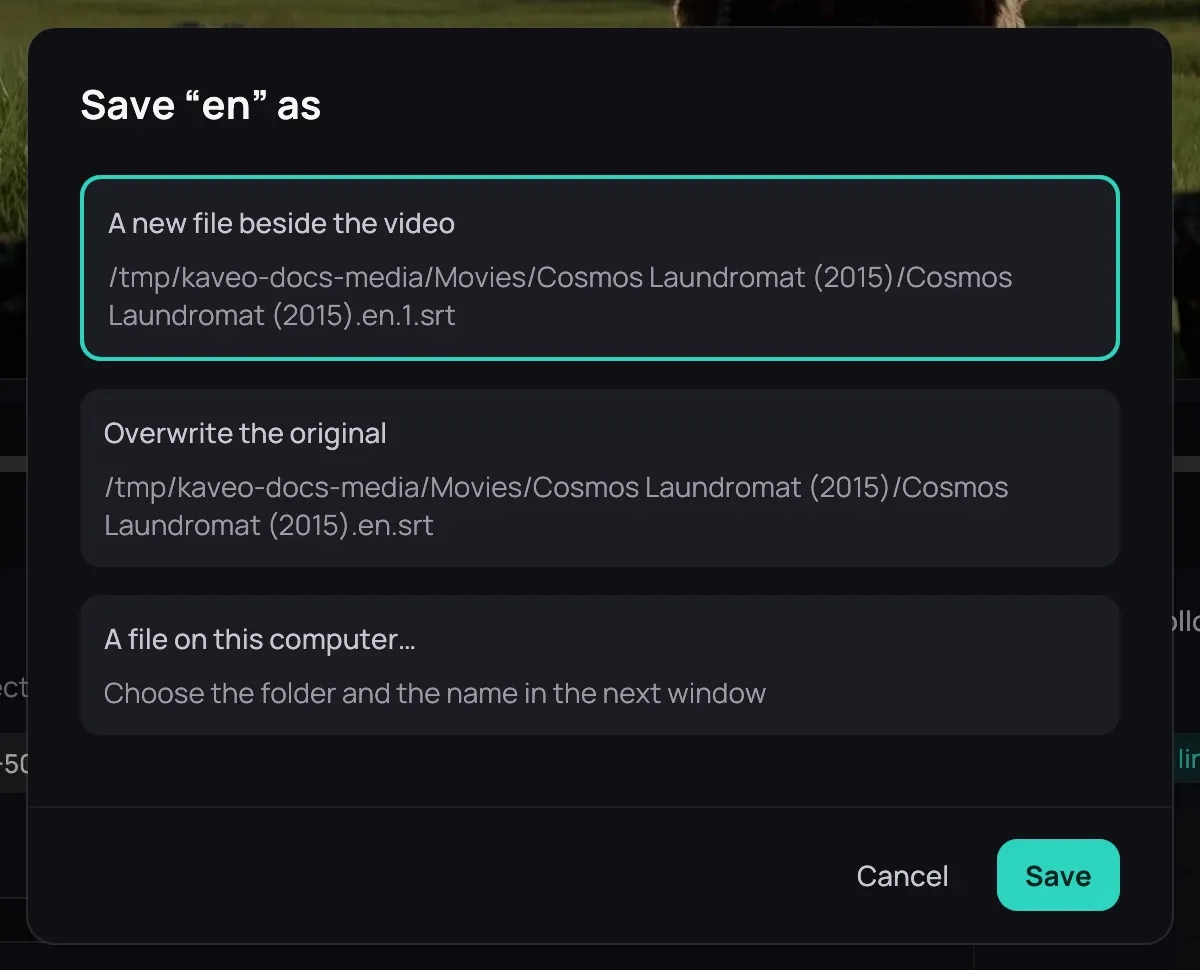
How to use it
Section titled “How to use it”- In the subtitle editor or on the All lines… page, click Save, or press Ctrl+S. The first time, Kaveo asks where.
- Choose A new file beside the video, A new file on the server for a Jellyfin title, Overwrite the original, or A file on this computer…, then click Save.
- Save as…, or Ctrl+Shift+S, picks another place. Both are also in Subtitles › Tools.
Good to know
Section titled “Good to know”- After the first time, Save writes to the same place.
- Overwriting asks first. With Keep a backup copy ticked, Restore the original in Subtitles › Tools puts the old file back.
- On a server, Kaveo removes the original and uploads the new file under its name. If the upload fails, the original goes back.
- Syncing, the delay written into the file and an accent fix save again where you saved.
- Removing a subtitle in Kaveo never deletes a file you saved.