
Download folders
What it is for
Section titled “What it is for”Kaveo files finished downloads into your libraries, named by your templates. A download folder is an input only: Kaveo does not scan it as a library folder, and anything still downloading stays behind.
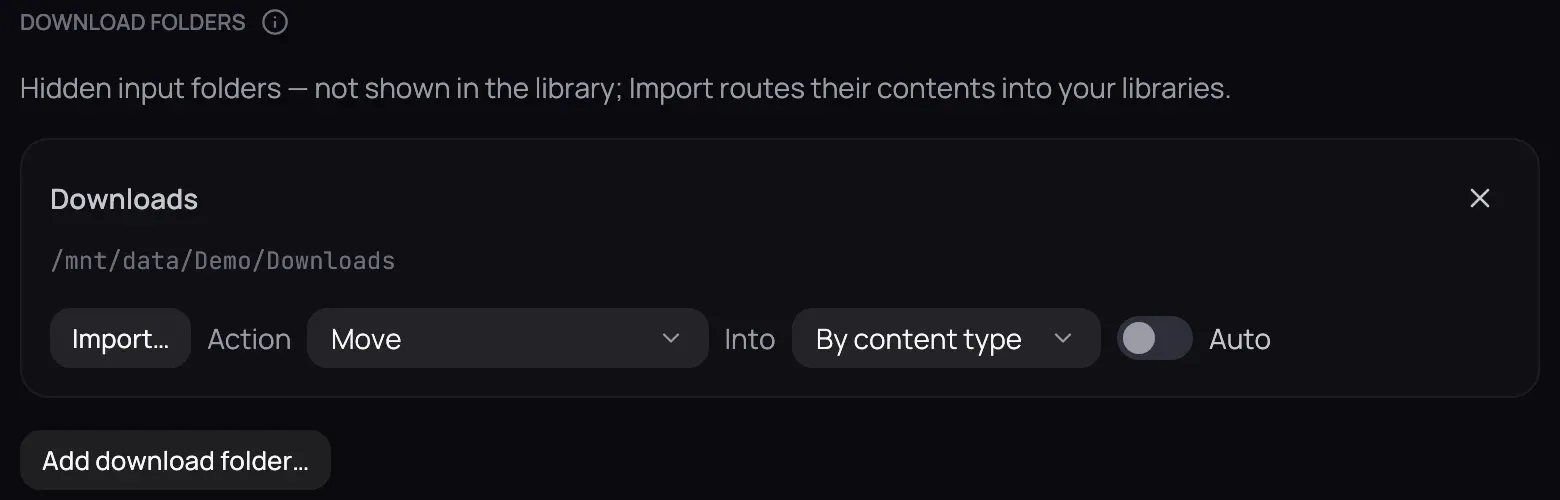
How to use it
Section titled “How to use it”Add a download folder
Section titled “Add a download folder”- In Settings › Library › Folders, under Download folders, click Add download folder….
- On its card, choose Move or Hardlink (keep original) and where the files go — By content type, or one category if this folder always feeds the same library.
- Click Save — nothing on the card counts until you do.
Import what is in it
Section titled “Import what is in it”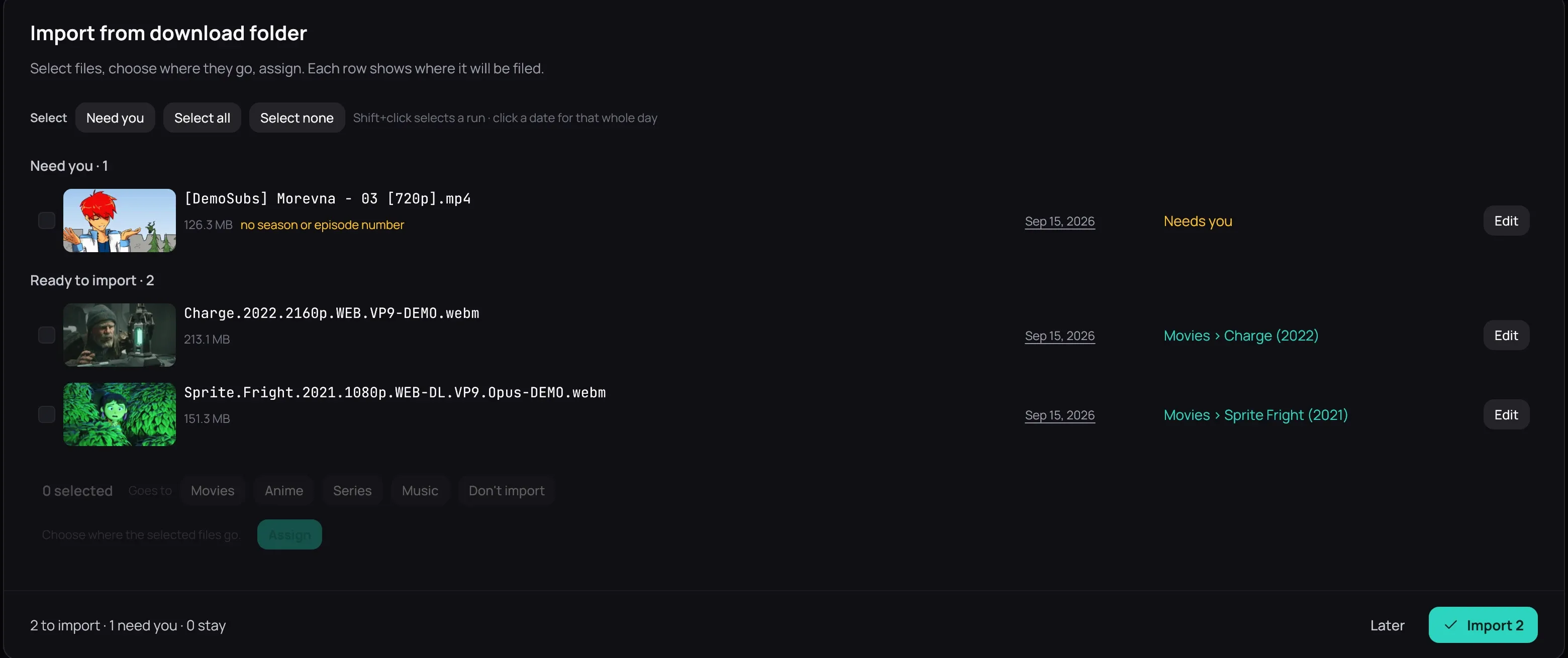
- Click Import…, then Preview if Kaveo asks where each kind goes.
- Each file shows where it will be filed. Answer any under Need you — see Fixing an import — then click the Import button at the foot.
Good to know
Section titled “Good to know”- Hardlink (keep original) keeps your torrent client seeding, but only within one drive: a file it cannot link is skipped, not copied.
- Kaveo never overwrites a file already at the destination; a file it cannot name waits under Need you instead.
- Later closes the window and moves nothing.
- Tick Auto and click Save to import with no preview. A file Kaveo cannot identify stays behind, and a message offers Review…, or Don’t ask again to stop being told about it.