
HDR output
What it is for
Section titled “What it is for”An HDR film carries brighter highlights and richer colour than an ordinary video. Kaveo can send it to an HDR-capable display so it looks the way it was mastered.
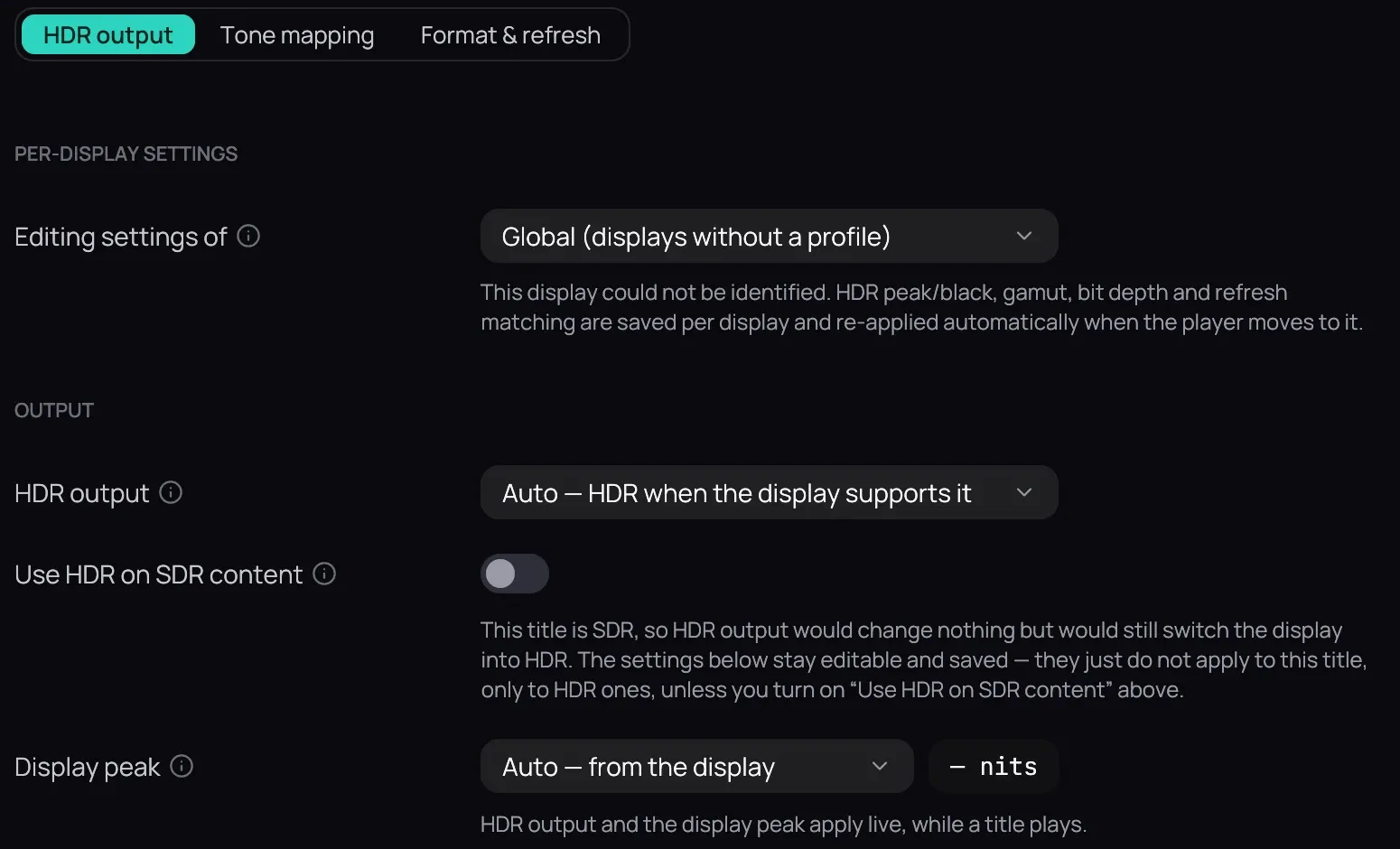
How to use it
Section titled “How to use it”- While a video plays, press Ctrl+H and pick the Display & HDR tab, or open Settings › Display & HDR.
- Set HDR output to Auto — HDR when the display supports it (the default) or On — strict HDR passthrough, then click Save.
- For the best result, calibrate first: on Windows, run Windows HDR Calibration (from the Microsoft Store) and Kaveo reads the saved value by itself.
- Otherwise, or if your screen’s peak is under 400 or over 2000 nits (Kaveo then assumes 600), set Display peak (shown only with Auto) to Override and type your screen’s rated HDR peak in the number beside it.
Good to know
Section titled “Good to know”- HDR engages only while an HDR video plays; Kaveo restores your display when it closes.
- An SDR film never switches the display, unless you turn on Use HDR on SDR content (off by default).
- Music never switches the display, whatever these settings say: there is no picture to show in HDR.
- On Linux, HDR switches on by itself on KDE Plasma; on other desktops, turn on your desktop’s own HDR support first.