
Writing and editing subtitles
What it is for
Section titled “What it is for”Fix a subtitle’s timing or words against the film, or write a new one.
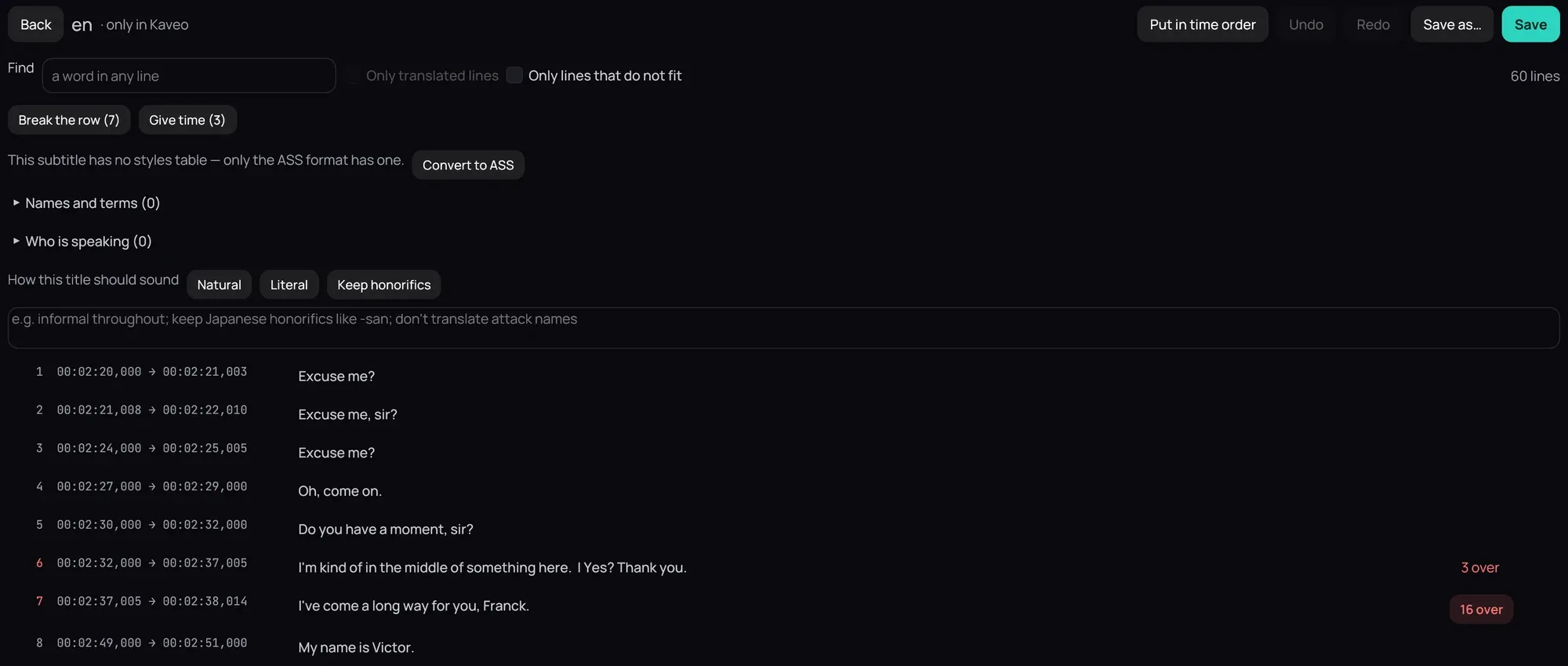
How to use it
Section titled “How to use it”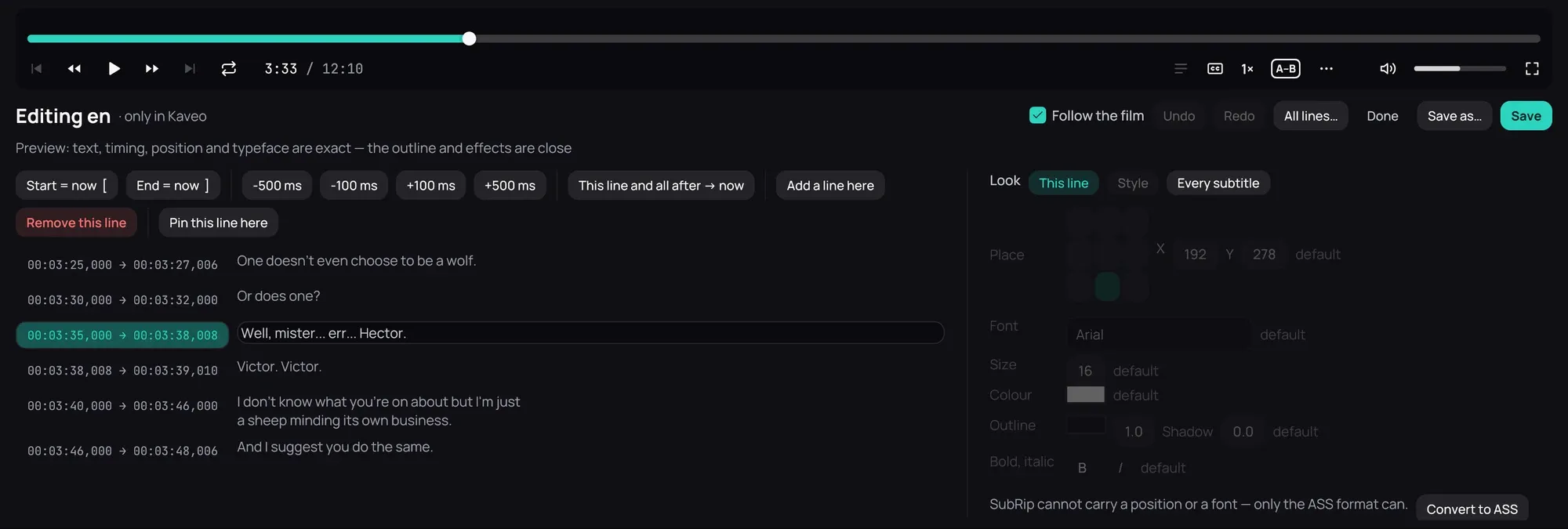
- With a subtitle file on screen, right-click the picture, open Subtitles › Tools and choose Edit subtitles…, or press E.
- Click Start = now [ or End = now ], or press [ or ], to set the line’s start or end to the frame on screen. ↑ and ↓ move between lines.
- Click in the line’s box to change its words — Shift+Enter starts a new line — then press Enter or click outside it.
- Click All lines… to correct lines in a list.
- Or choose Write one from nothing… in Subtitles › Tools to start with one empty line.
Good to know
Section titled “Good to know”- A track inside the video has to be extracted first — see Loading subtitles.
- Kaveo keeps your changes as you go; other players see them once you save the subtitle — see Saving a subtitle.
- While the panel is open, the playback bar is its top row. Drag the panel’s top edge for more lines or more picture.
- On the All lines… page, a line added from the audio has its times in colour, and Only lines from the audio shows just those.
- To remove a subtitle Kaveo keeps, click its bin under Beside the video; Kaveo asks first. A file you put beside the video yourself, or saved, is never changed.