
Audio and subtitle tracks
What it is for
Section titled “What it is for”When a video carries more than one soundtrack or subtitle, choose which one plays.
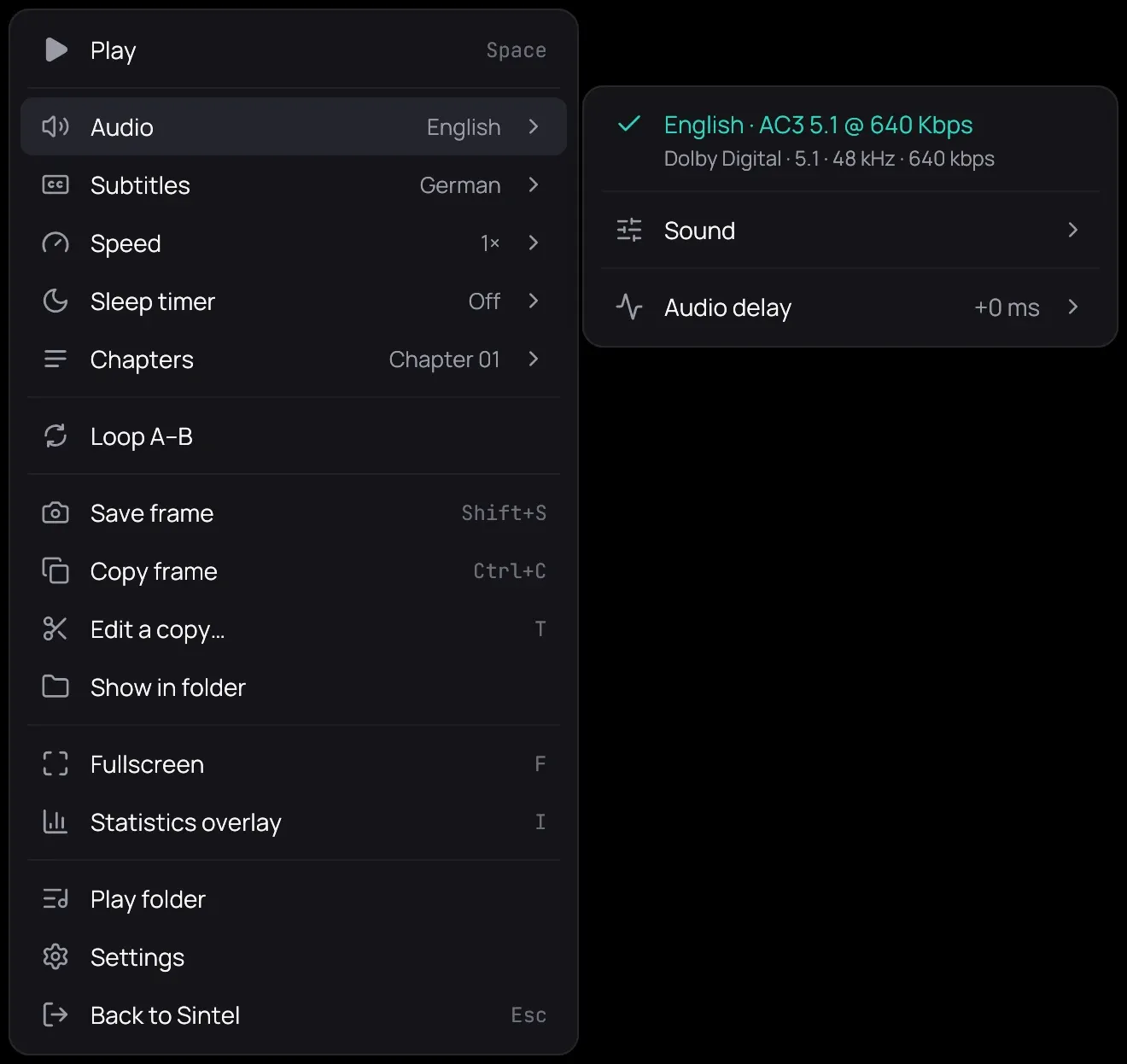
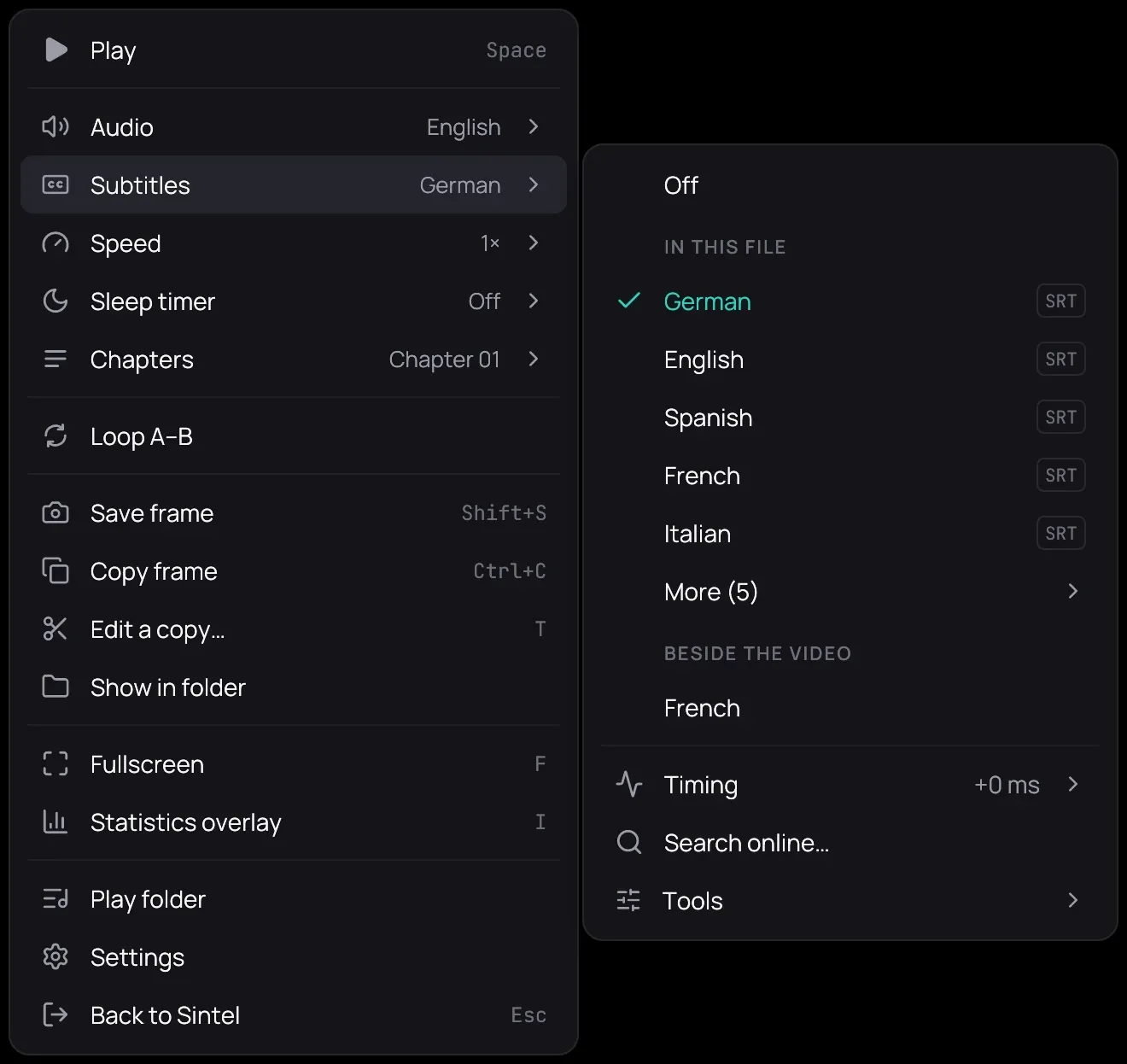
How to use it
Section titled “How to use it”- While a video plays, right-click the picture.
- Point at Audio and click a track; the ticked one is playing.
- Point at Subtitles and click Off, a track under In this file, or a file under Beside the video.
- Or press A to step through the audio tracks, and S through the video’s own subtitle tracks and off.
Good to know
Section titled “Good to know”- Kaveo remembers the language you pick, or Off, for that film or series, later episodes included — from your own folders and from Jellyfin alike. A subtitle file you pick comes back whenever that video plays. A commentary never opens first; see Audio settings for your languages. A private title keeps no language.
- Audio › Audio delay moves the sound 50 or 500 ms at a time, or press K and L; it is remembered for that film or series. The subtitles have their own, under Subtitles › Timing — see Subtitle timing.
- To get, time, write or translate a subtitle, see Loading subtitles, Finding subtitles online, Syncing subtitles, Writing and editing subtitles and Translating subtitles.