
Tidying a folder
What it is for
Section titled “What it is for”A new naming template is never applied to what is already in your library. Tidying brings a folder in line, and shows you the list before anything moves.
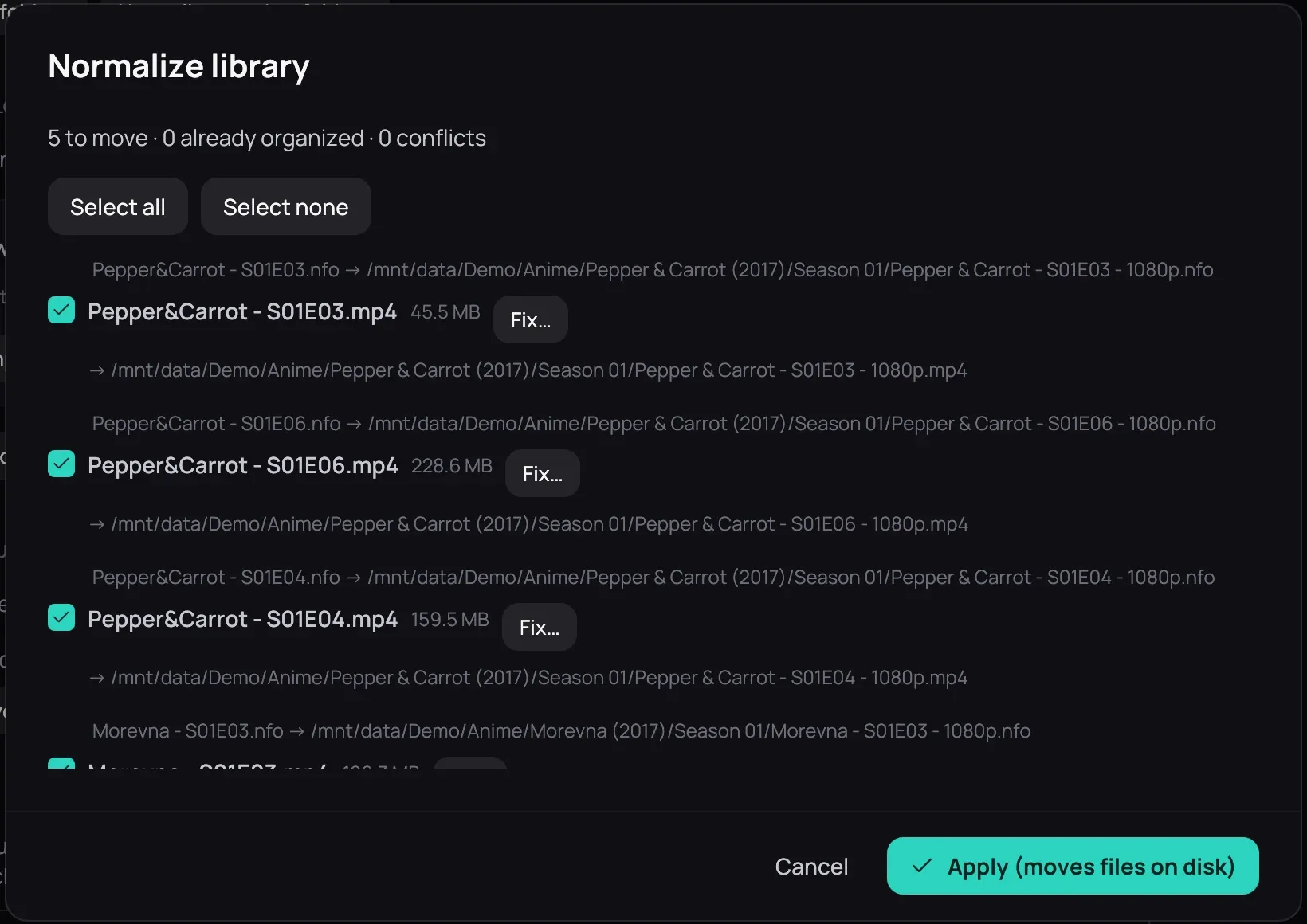
How to use it
Section titled “How to use it”- Click Normalize… beside a library folder in Settings › Library › Folders, or beside a category’s folder in Settings › Library › Categories; for one film right-click its card, for one episode its row on the series page, and choose Rename / normalize….
- Kaveo reads any file it has not seen before (Preparing the preview); Cancel stops it, and nothing has moved.
- In the Normalize library list, untick a row to leave it out, or use Select all / Select none.
- Click Fix… beside a row Kaveo read wrong, correct it, then click Re-plan.
- Click Apply (moves files on disk).
Good to know
Section titled “Good to know”- Subtitles, artwork and the NFO file travel with the rename, and so do the title’s saved position, its card in Recently played, and your corrections.
- A file Kaveo could not place is listed as a conflict with its reason; see Fixing an import for the ones you can answer.