
Components
What it is for
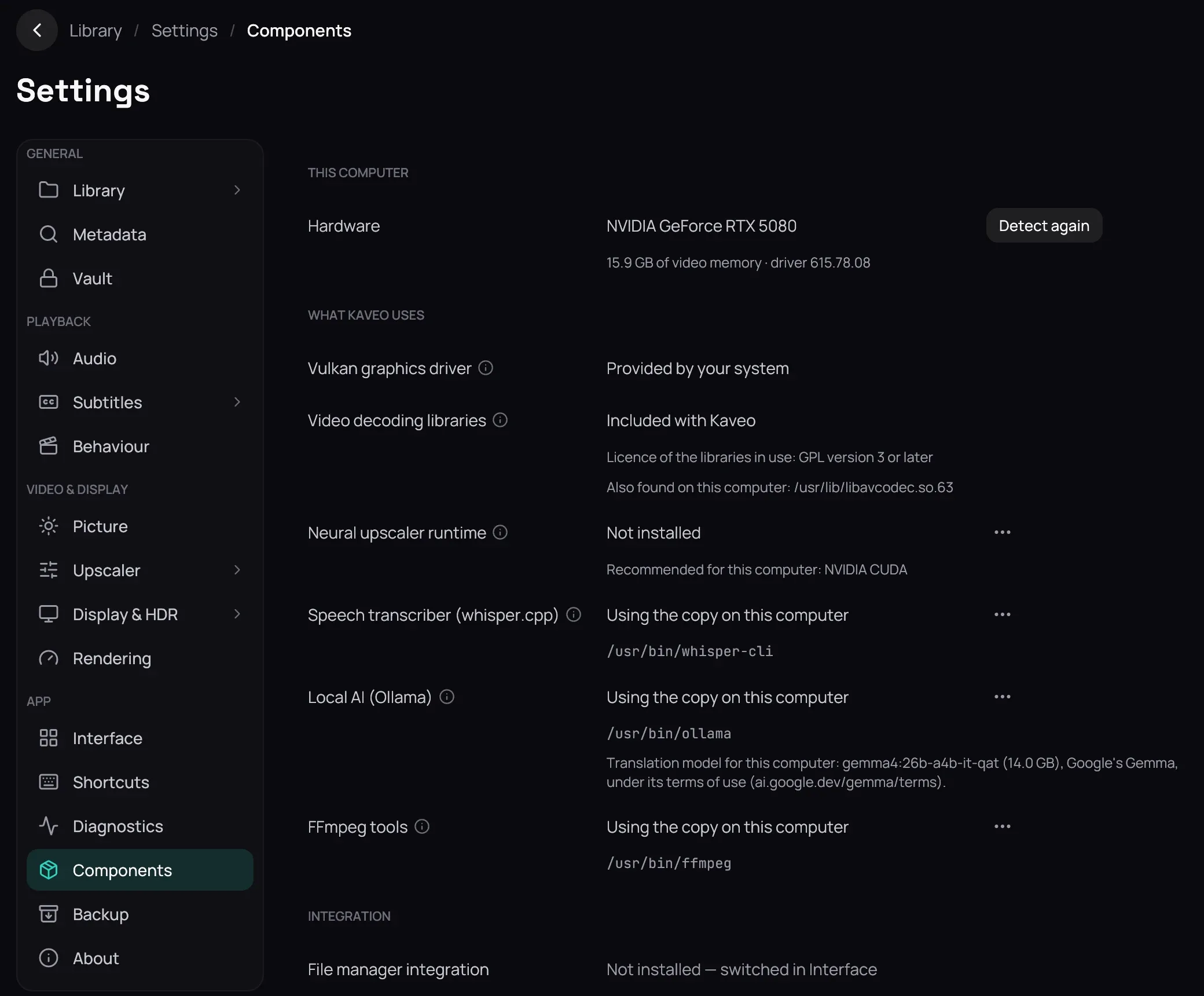
Section titled “What it is for”Settings › Components shows what this computer has, what Kaveo uses of it — video libraries, the upscaler’s runtime, the speech transcriber, a local AI, FFmpeg tools, OCR — and what is missing.
How to use it
Section titled “How to use it”- Read This computer: the graphics card every recommendation is made for.
- Read each row of What Kaveo uses: the copy in use or the one recommended, and the steps to fix what is not possible.
- Click Install where offered: Kaveo installs the build that suits this computer, with the model it needs, and tries it first.
- Click the list button at the end of a row for its choices: a copy already on the computer, Kaveo’s copy in another build, Leave it out, or Back to the default.
- After installing a driver or a program, click Detect again.
- Under Integration, turn on Command in the terminal to start Kaveo by typing kaveo — see Command line.
Good to know
Section titled “Good to know”- A choice is kept at once, without Save; some take effect the next time Kaveo starts. An installed component is used at once.
- If a download fails or does not run here, the copy you had stays in use.
- When a newer build of Kaveo’s copy is out, its row offers Update to it.
- Video decoding libraries are Kaveo’s own unless you choose this computer’s or a folder of your own; if those do not work, Kaveo keeps its own and says why under the row.