
Diagnostics
What it is for
Section titled “What it is for”Settings › Diagnostics is where Kaveo says what it is doing, and where to find the pieces a bug report needs.
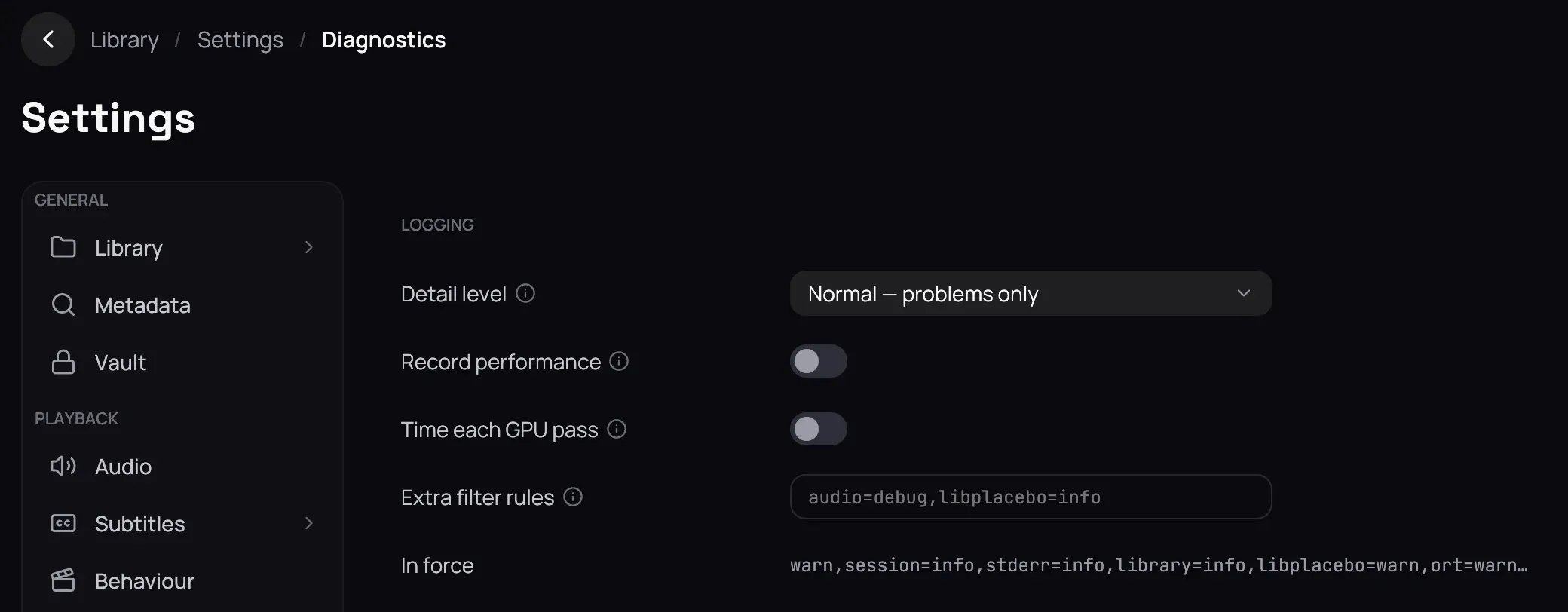
How to use it
Section titled “How to use it”- Under Logging, raise Detail level — Normal — problems only, Detailed — what the app did, Debug — for reporting a bug, Everything — including the video libraries — while you chase something, then set it back; it applies at once, with no restart.
- Turn on Record performance when playback stutters — a few lines a second while a video plays; Time each GPU pass goes further, needs that one on too, and is not free. Extra filter rules raises one part of Kaveo on its own.
- Log files names where they go: one file a day, the last ten kept, each line tagged with its launch.
- Under Diagnostic session, click Start recording, reproduce the problem, then Stop recording — a file with just that, not a whole day’s log.
- Click Export a diagnostic bundle for one zip to send, then Show the file to find it; Control from outside is for driving Kaveo from a script.
Good to know
Section titled “Good to know”- A bundle holds the recent logs, any crash reports and your machine’s details; your library folders, servers and lists are left out, your home folder and user name removed, and the zip lists what it left out.
- Nothing here waits for Save — each row acts and is kept at once, and Revert does not undo it.