
Viewing photos
What it is for
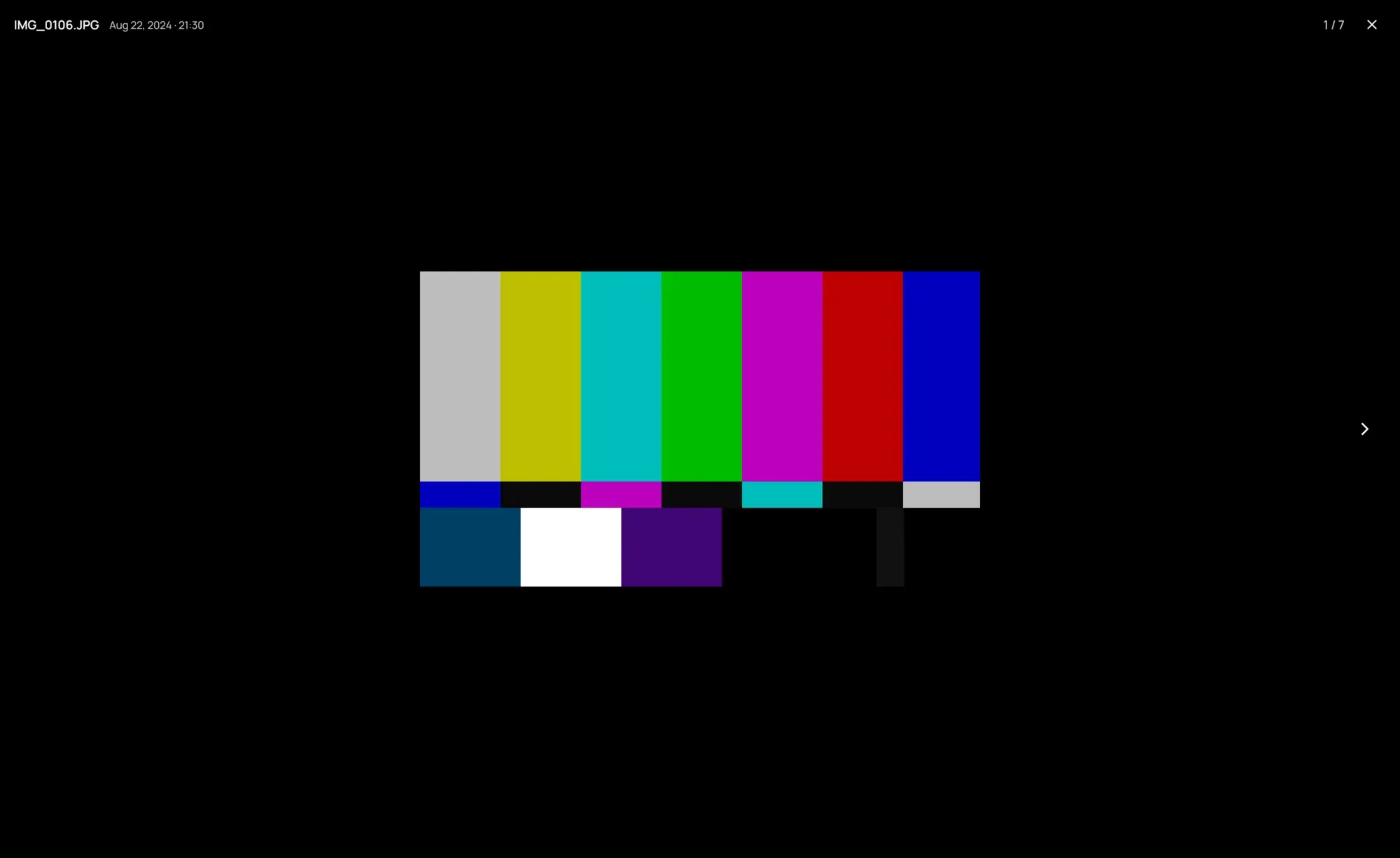
Section titled “What it is for”A click on a photo in one of your own folders opens it on its own, on black, with its name, its date and its place in the folder across the top.
How to use it
Section titled “How to use it”- Turn the mouse wheel to zoom toward the pointer, and drag to move around. The spot under the pointer stays put once the photo is larger than the window.
- Double-click to see the photo at its actual size, and again to fit it back.
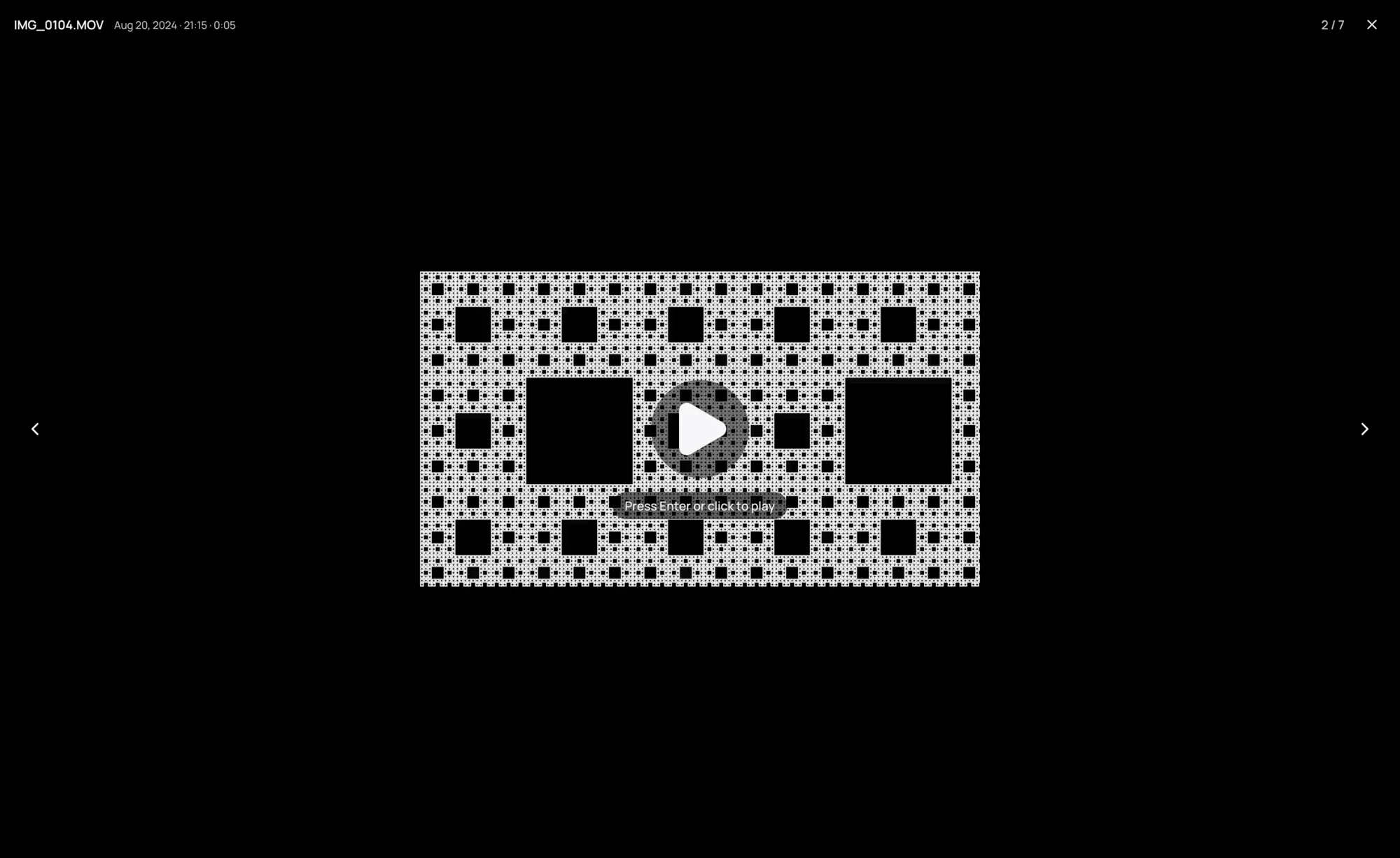
- Press → or ← to go through the folder, newest first. A video stops you: its picture shows, and nothing plays.
- Press Enter or click the video to play it. Esc in the player, or the end of the video, brings you back to it; in full screen, the first Esc only leaves full screen.
- Press Esc, or click the close button, to return to the folder.
Good to know
Section titled “Good to know”- Opening a photo stops a video that was still playing in the background.
- A photo that cannot be shown says why, and keeps its place in the folder.
- A photo opened from outside Kaveo steps through its folder by name; Esc goes to the library.
- A Live Photo carries a LIVE badge. Hold Space, or press and hold the badge, to play its motion from the start, without sound; let go and the photo comes back. If the motion ends first, the photo comes back on its own.