
Hiding a photo
What it is for
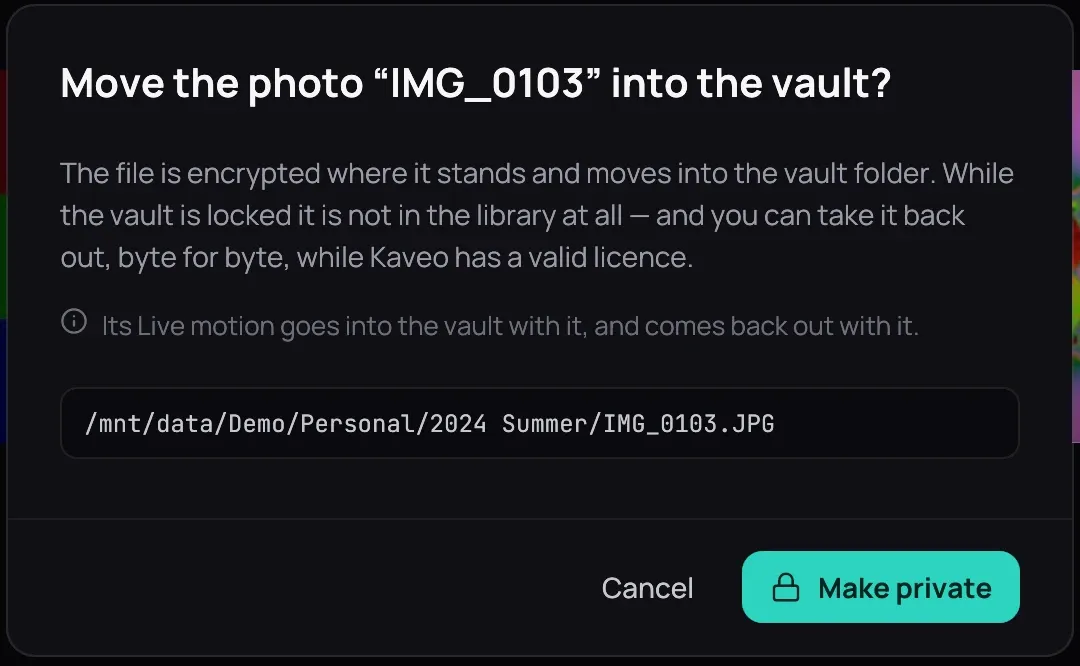
Section titled “What it is for”Make one of your own photos private — encrypted, and out of your library while the vault is locked. A Live Photo’s motion goes in with it.
How to use it
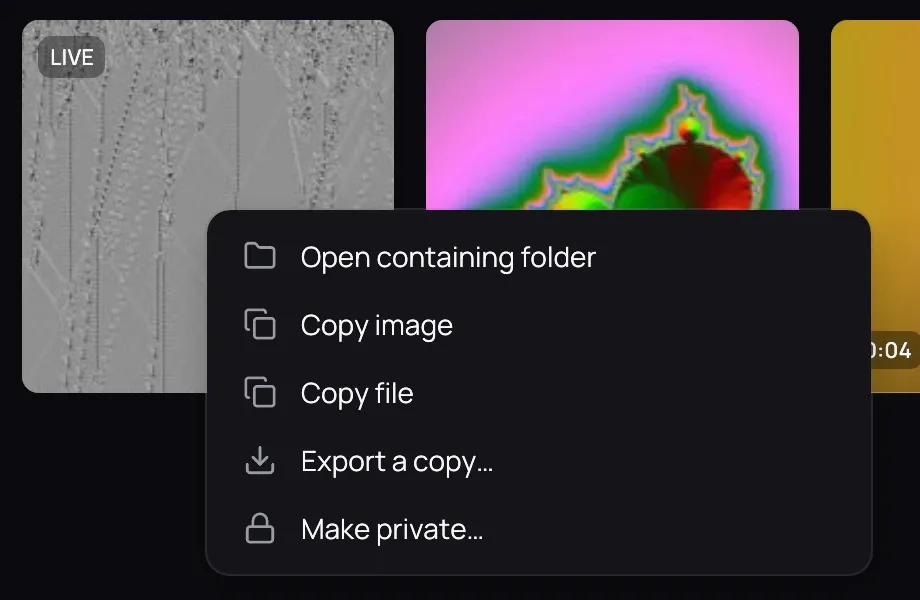
Section titled “How to use it”- Unlock the vault, then right-click a photo on its folder’s page and choose Make private….
- Check the path, then click Make private.
- Or drop the photo into your private folder: Kaveo hides it, and the video of the same name beside it as its motion.
Good to know
Section titled “Good to know”- While the vault is unlocked, the photo stays in its folder at its date, and opens in the viewer as before — its motion too. A slideshow leaves it out.
- Its picture is never kept anywhere unencrypted, not even its small preview: Kaveo makes it again after each unlock.
- A private photo offers no copies. Take it back out to copy or export it — see Taking a title back out; it comes back with its motion and its dates.