
Naming templates
What it is for
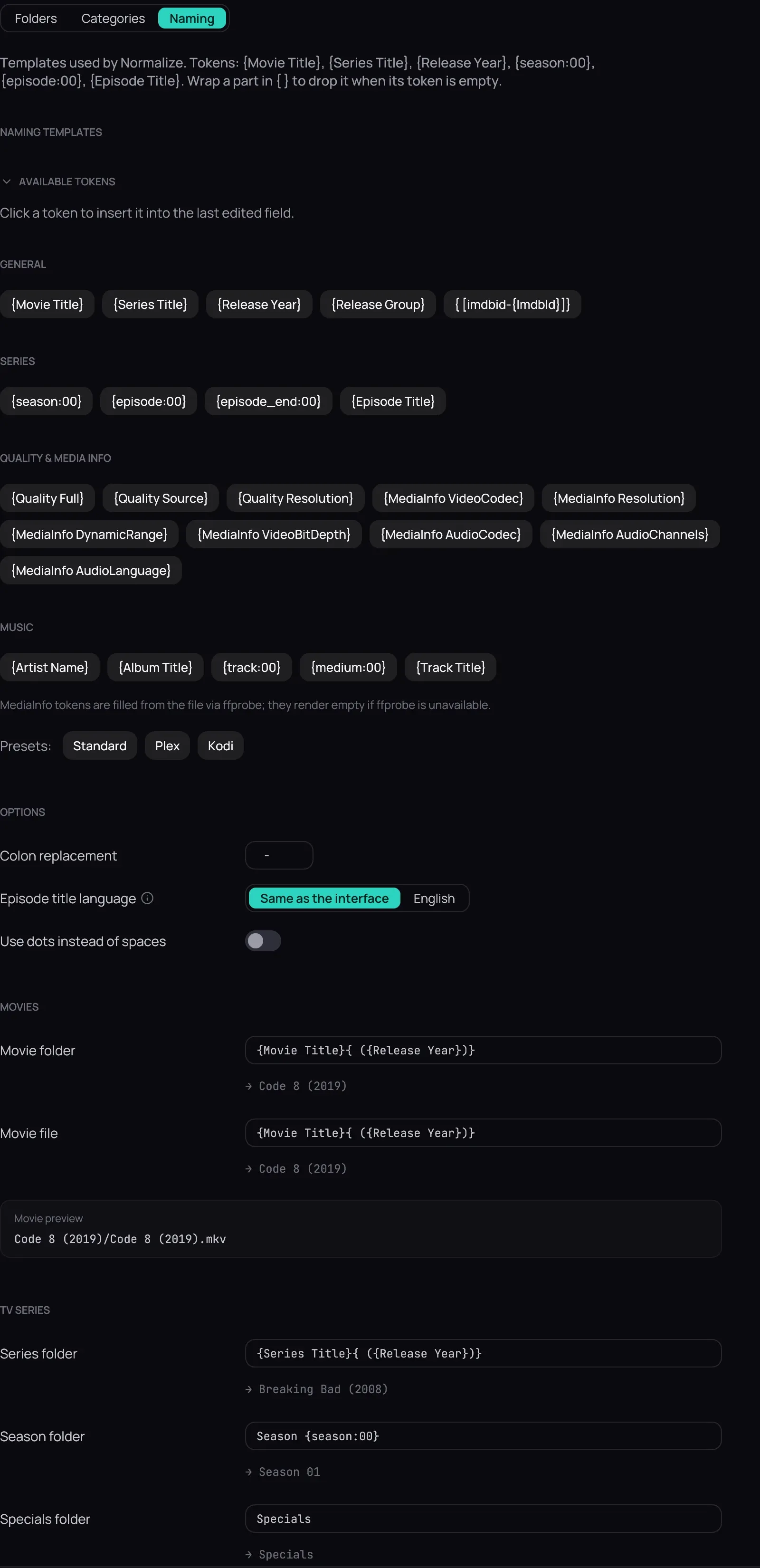
Section titled “What it is for”Naming templates describe the layout Kaveo renames files into — on import, and when you tidy a library folder.
How to use it
Section titled “How to use it”Set your templates
Section titled “Set your templates”- Open Settings › Library › Naming. A preset — Standard, Plex or Kodi — replaces every field except Music naming, the Anime ones included.
- Edit a template under Movies, TV Series or Music naming: click in a field, then click a token under Available tokens to add it to the end.
- Under Options, set Colon replacement, Episode title language (English or Same as the interface) and Use dots instead of spaces.
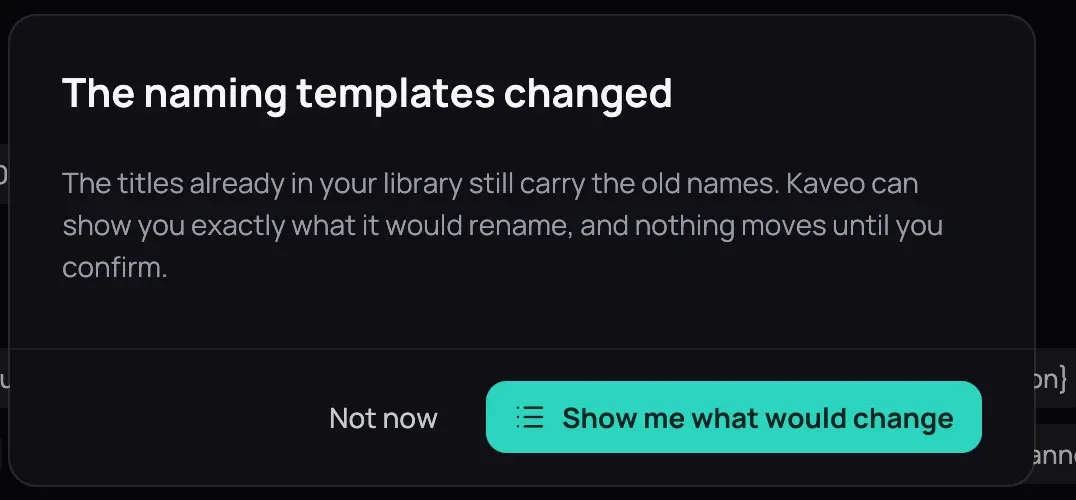
- Click Save. The naming templates changed then offers Show me what would change — a preview across your whole library — or Not now.
Name anime differently
Section titled “Name anime differently”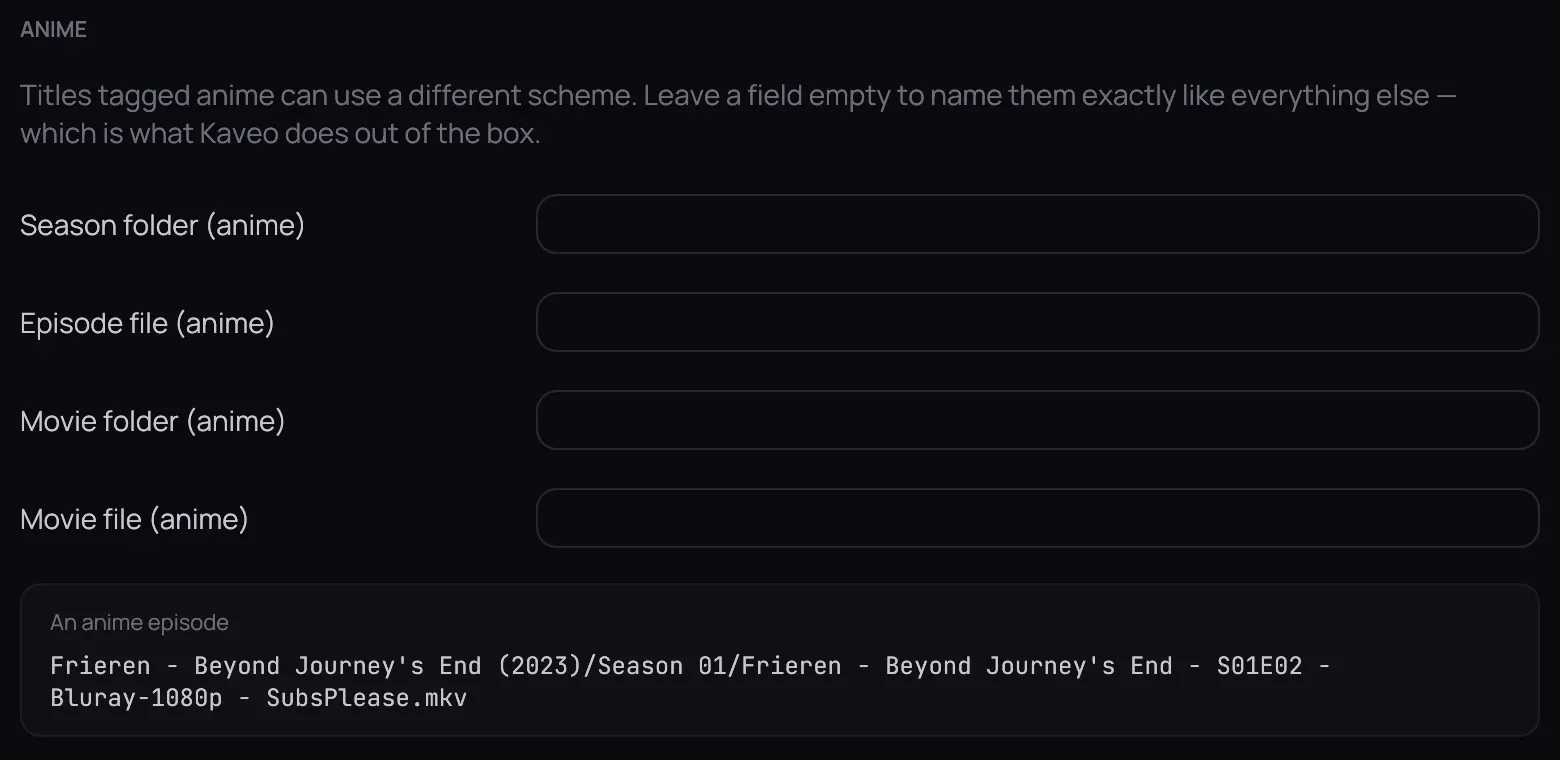
- Under Anime, fill in Episode file (anime) — for example {Series Title} - {episode:00}.
- Leave the other three empty to name anime like everything else, then click Save.
Good to know
Section titled “Good to know”- A token is typed exactly as shown, such as {Movie Title}; wrap a part in another pair — { ({Release Year})} — to write it only when its token has a value.
- {Quality Full} turns a release’s own words into one name, such as Bluray-1080p: the source is read from the file’s name, then its folder, and the picture size is measured from the file.
- With a TMDB API key (Settings › Metadata; Metadata), titles are filed under their official English names rather than the ones read from the files.