
Translating on your own computer
What it is for
Section titled “What it is for”Translate on this computer, and let Kaveo listen to the film’s original audio.
How to use it
Section titled “How to use it”Use a local model
Section titled “Use a local model”- On Linux, click Install on Local AI (Ollama) in Components: Kaveo installs Ollama and a model that suits your graphics card, and starts it when needed. Or install Ollama or LM Studio yourself, with a model.
- In Settings › Subtitles › Translation, choose Ollama (local) or LM Studio (local) as Provider.
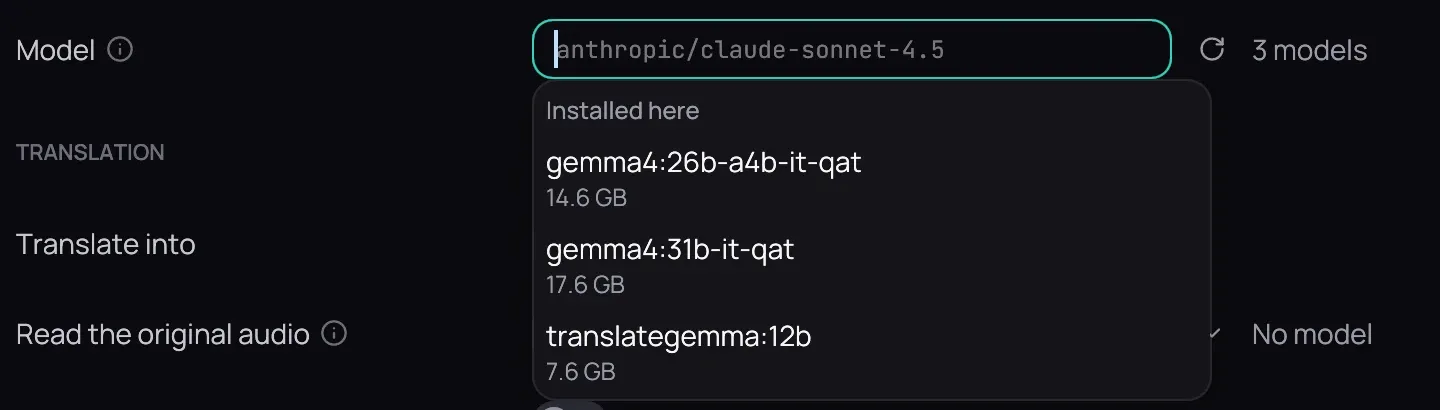
- Clear Model to see Ollama’s models under Installed here, with their sizes; pick one and press Save.
Listen to the film
Section titled “Listen to the film”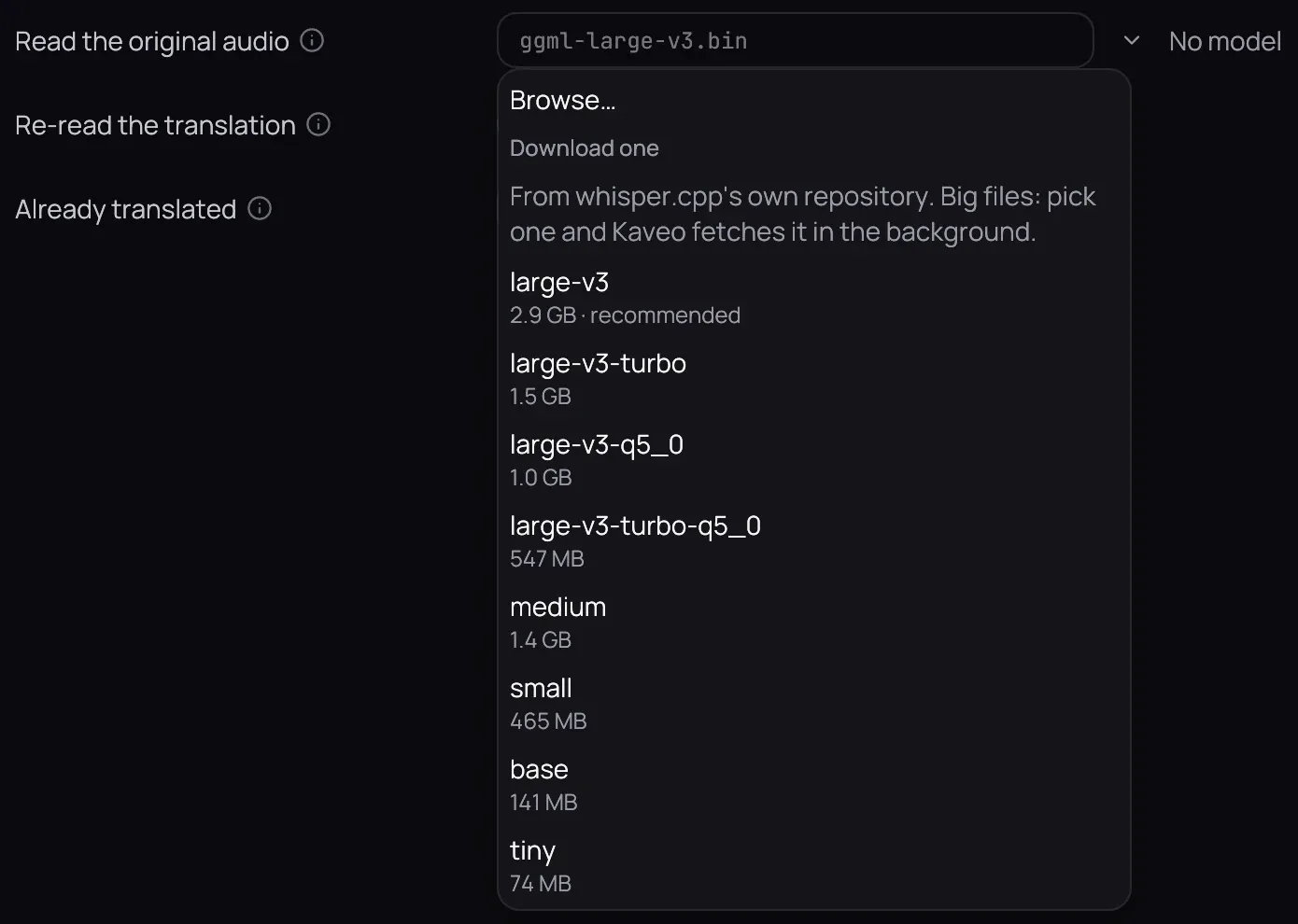
- Click Install on the speech transcriber’s row in Components: Kaveo picks the build for your graphics card and fetches a model with it. A whisper-cli you installed yourself works too.
- To change the model, at the end of the Read the original audio row, after the path field, click the list button (Choose a model) and pick, browse to or download a model.
- Press Save once the row reads ready.
Good to know
Section titled “Good to know”- Kaveo listens to a video on this computer before translating it, on the processor when a film keeps the graphics card busy, which takes about as long as the episode; a second translation reuses it.
- With Ollama, a model that loads while a film is open can end up on the processor, much slower, and stays there until Ollama unloads it.