
Genres and tags
What it is for
Section titled “What it is for”Every title carries genres, plus two tags of Kaveo’s own, anime and adult. Kaveo fills them in for you and lets you correct any of them.

How to use it
Section titled “How to use it”See a title’s tags
Section titled “See a title’s tags”- Open a title’s page to see its genres and tags.
Correct them
Section titled “Correct them”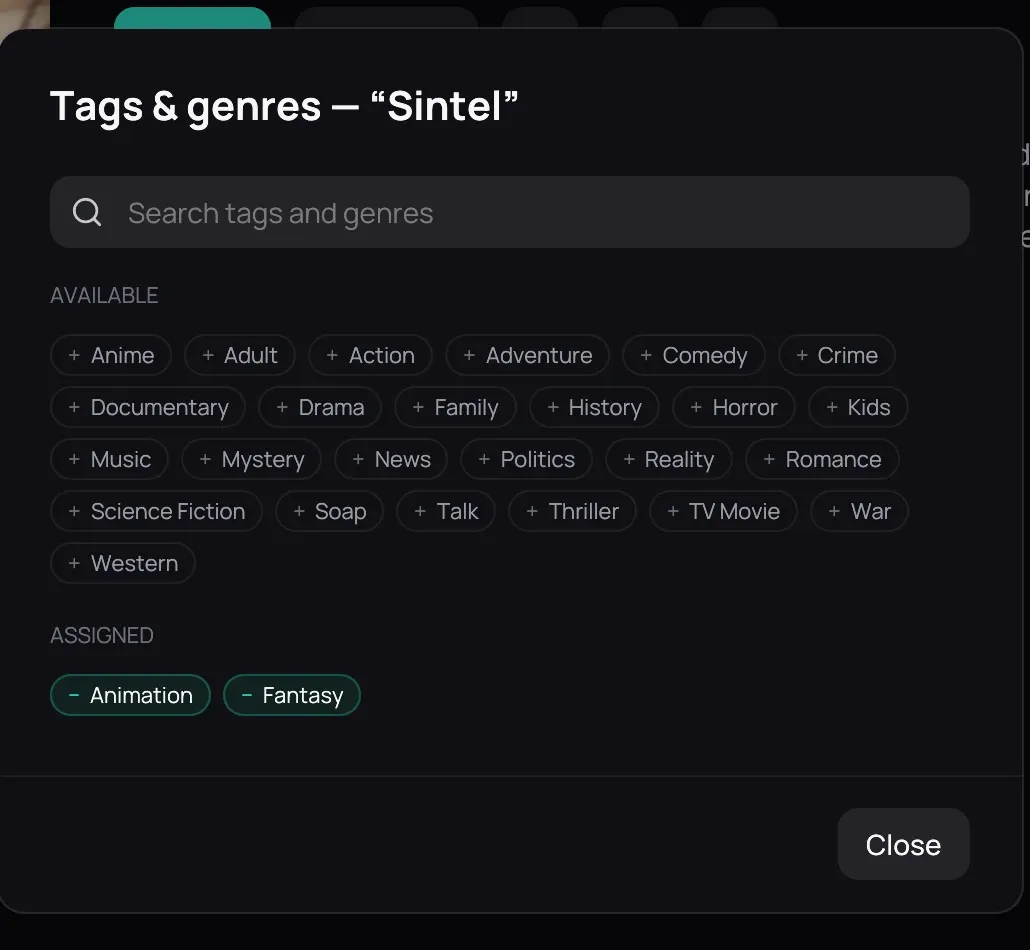
- Click the Tag chip after them to open the searchable list — an anime title’s entry explains why, for example Detected as anime: animation, in Japanese.
- Click an entry under Available to add it, or under Assigned to remove it.
- Type a name and click Add “…” as a genre for one the list does not have.
- Click Restore automatic classification or Restore automatic genres to hand a decision back to Kaveo.
Good to know
Section titled “Good to know”- Right-click a card and choose Mark as Anime or Mark as Adult without opening the title.
- A correction you make is remembered — a later rescan will not undo it.
- Settings › Metadata › Recatalogue library (Metadata) clears the cached metadata and starts over.