
Position and style
What it is for
Section titled “What it is for”Move a subtitle line, change how a style looks, or move every subtitle at once.

How to use it
Section titled “How to use it”Place and style a line
Section titled “Place and style a line”- Only ASS can be placed and styled, so for an SRT or WebVTT file first click Convert to ASS in the editor or on All lines…. Kaveo plays an ASS copy; the original stays.
- In the editor’s Look column, click a cell of the Place grid, type X and Y, or drag the line on the picture; below, set its Font, Size, Colour, Outline, Shadow, B or I. this line marks a value of its own; the button after it gives it back to the style.
- Pick Style «Default» instead of This line to change every line of that style.
- On All lines…, Styles lists every style, with margins and transparency.
Move every subtitle
Section titled “Move every subtitle”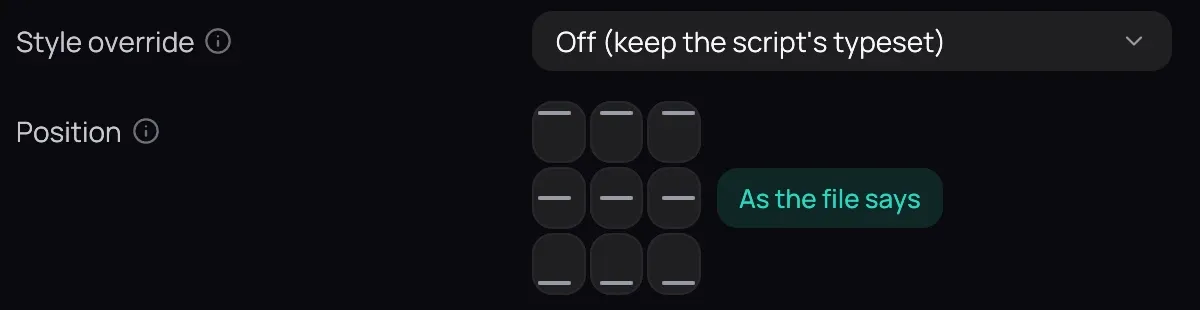
- Pick a cell under Position in Settings › Subtitles › Appearance and click Save. As the file says, then Save, undoes it. The editor’s Every subtitle edits the same setting, with its own Save.
Good to know
Section titled “Good to know”- The editor’s preview draws a line in the typeface the player will use; its outline and effects are close, not exact.
- A style change reaches the picture when you click Back.
- If a style change does nothing, set Style override in Settings › Subtitles › Appearance back to Off (keep the script’s typeset).
- A red not installed beside a font means this computer lacks it, and the player draws another.