
Locking and unlocking
What it is for
Section titled “What it is for”The vault locks itself after a while so you do not have to remember, and its password can be changed without touching the films inside.
How to use it
Section titled “How to use it”Locking
Section titled “Locking”- Open the padlock menu and choose Lock now to lock immediately — if a film is on screen Kaveo asks first: playback carries on, but every hidden title leaves the library around it.
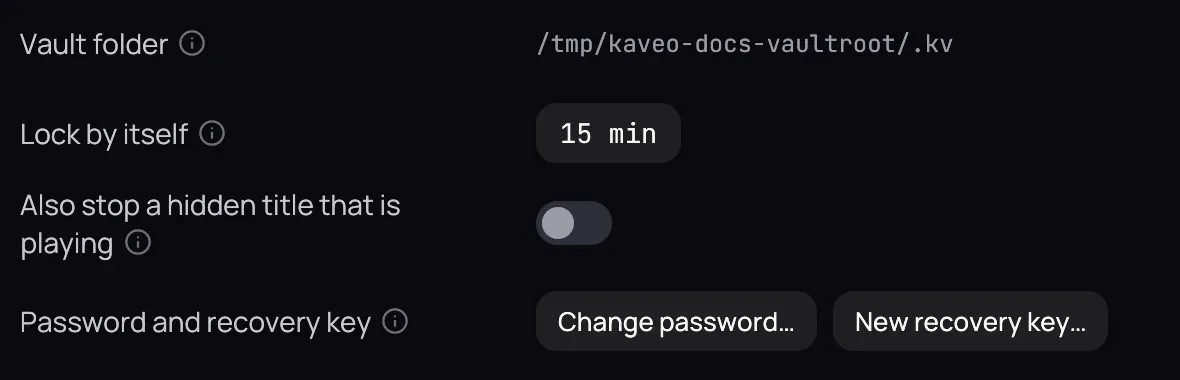
- Or leave it: the vault locks itself after 15 minutes idle by default — playing a title counts as activity, so it never locks in the middle of one.
Unlocking
Section titled “Unlocking”- Click the padlock and type your Password — or click Use recovery key instead and give the key.
- Click Unlock. Your private titles are back in the library.
Changing your password
Section titled “Changing your password”- Unlock the vault, then open Settings › Vault (Vault) and click Change password… — it is greyed out while the vault is locked.
- Enter your current password (or your recovery key), the new password twice, then click Change password.
Good to know
Section titled “Good to know”- Your recovery key still works after a password change — it opens the vault on its own. To retire it, unlock the vault, click New recovery key… and give your password or the old key; the old one stops working at once.
- Set Lock by itself to 0, in Settings › Vault, to turn the timeout off.
- Locking is built against someone browsing your library or files, not against forensic recovery of the drive.