
Interface
What it is for
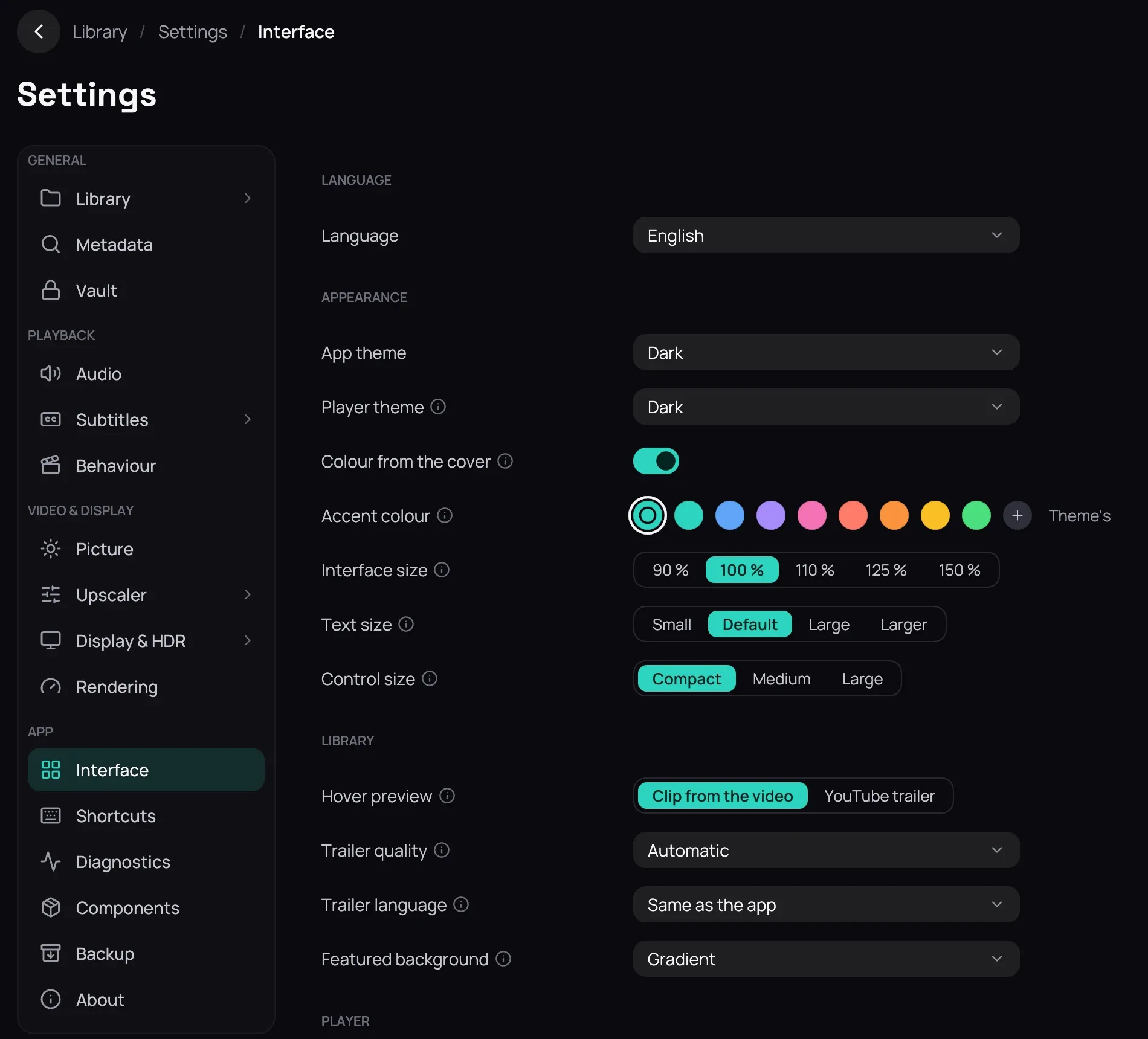
Section titled “What it is for”Settings › Interface covers how Kaveo looks and behaves, and whether it appears in your desktop’s menus and media controls.
How to use it
Section titled “How to use it”- Pick a Language: English, Italiano, Français or Español.
- Choose an App theme for the library and a Player theme for what surrounds a film, from Dark (the default), Light, Pure black (OLED), High contrast, Warm night and Indigo. Colour from the cover tints a song’s screen; Light and High contrast stay plain.
- Pick an Accent colour, an Interface size, a Text size and a Control size.
- Set Hover preview to Clip from the video or YouTube trailer; a server’s title always plays its trailer.
- Set Trailer quality and Trailer language; see Trailers.
- Choose a Featured background — Title artwork is the default; see The library home.
- Leave System media controls on for the media keys; see Media keys and the desktop. Turn on File manager integration to put Kaveo in your desktop’s right-click menus; see From your file manager.
- Turn off Seek bar previews to show only the time and chapter.
- Set Slideshow interval per photo; see Slideshow.
Good to know
Section titled “Good to know”- Every row but File manager integration waits for Save; the language, the themes, System media controls and Seek bar previews change at once; Revert undoes them.
- That one acts at once, and Revert does not undo it.