
Syncing subtitles
What it is for
Section titled “What it is for”A subtitle made for another edit, such as a TV broadcast, can drift out of time. Line it up against a video track, or pin two lines by hand.
How to use it
Section titled “How to use it”Line it up against a track
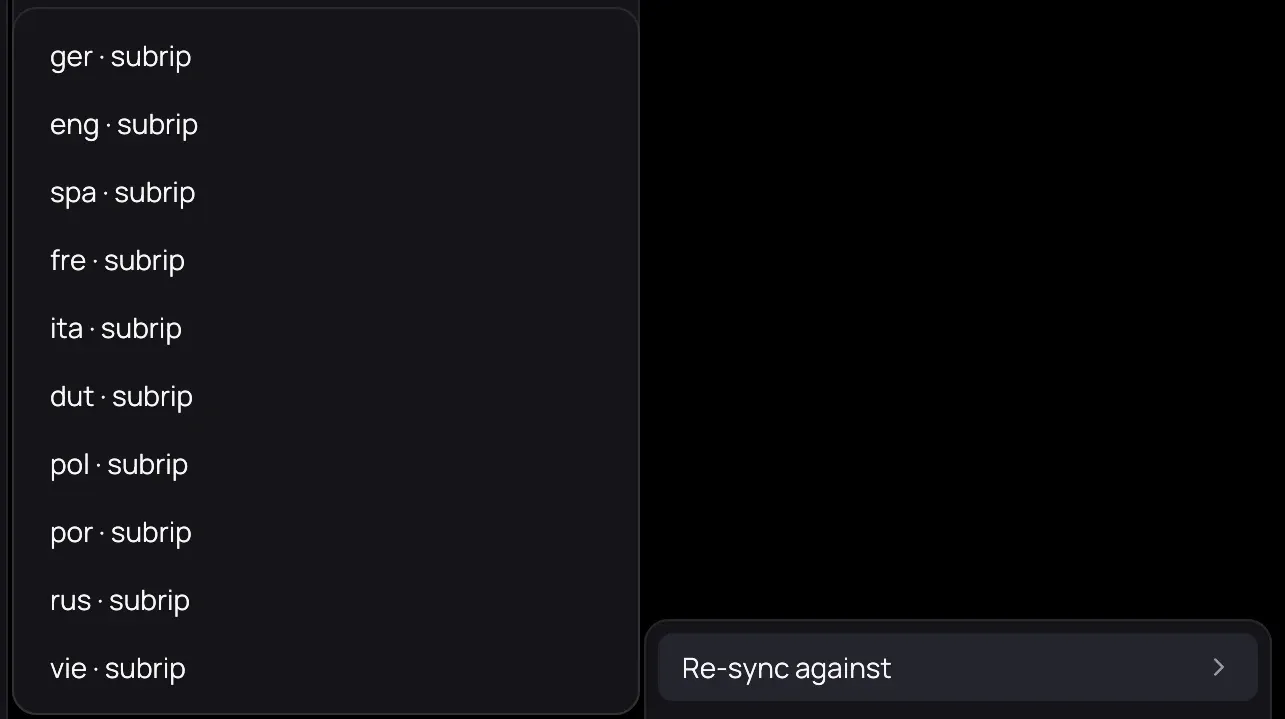
Section titled “Line it up against a track”- With a subtitle file on screen, right-click the picture, open Subtitles › Tools and point at Re-sync against.
- Pick any track, even a picture-based one.
Read what it would change
Section titled “Read what it would change”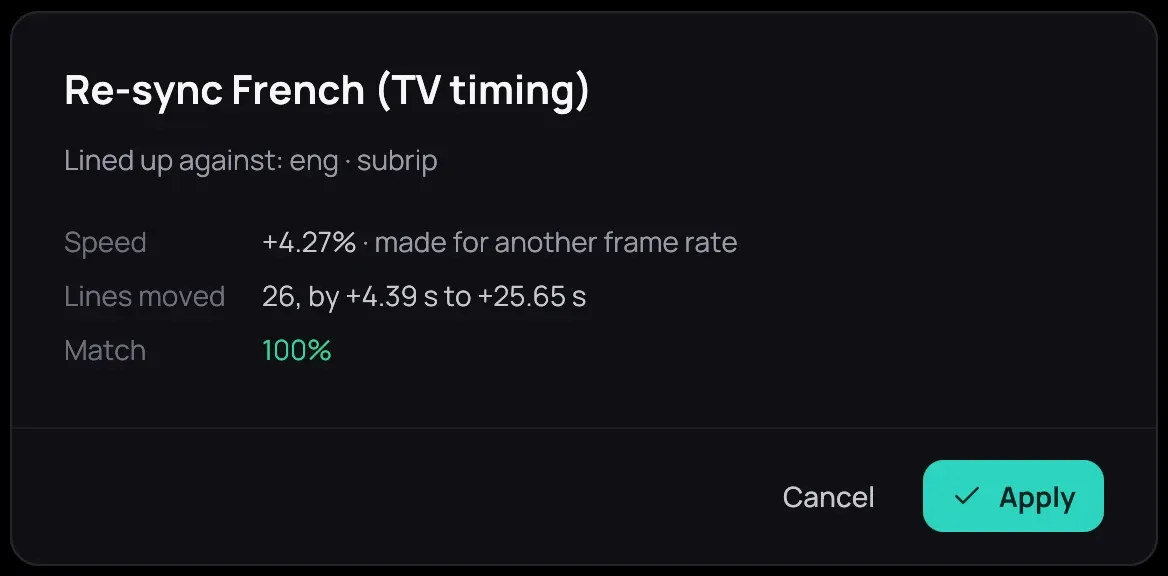
- Kaveo reads the whole video and shows what it would change.
- Click Apply or Cancel.
Pin two lines by hand
Section titled “Pin two lines by hand”- In the subtitle editor, click a line near the start.
- Play to where it should appear and press Pin this line here.
- Repeat near the end, then press Fit the speed to the two pins.
Good to know
Section titled “Good to know”- The subtitle you are syncing must be a file, so a track inside the video has to be extracted first — see Loading subtitles. The reference can be any track, including a picture-based one.
- Re-sync against is missing on a video with no subtitle tracks; the pins work there. On a Jellyfin title only a text track can be the reference.
- Apply cannot be undone, and a high match only means the lines overlap the reference, not that each one landed right. Undo reverses a speed fit while the editor stays open.
- To fix a whole season or series at once, see Resyncing a whole series.