
Translating subtitles
What it is for
Section titled “What it is for”Translate a subtitle with an AI model, online or on your own computer. Each line keeps its timing.
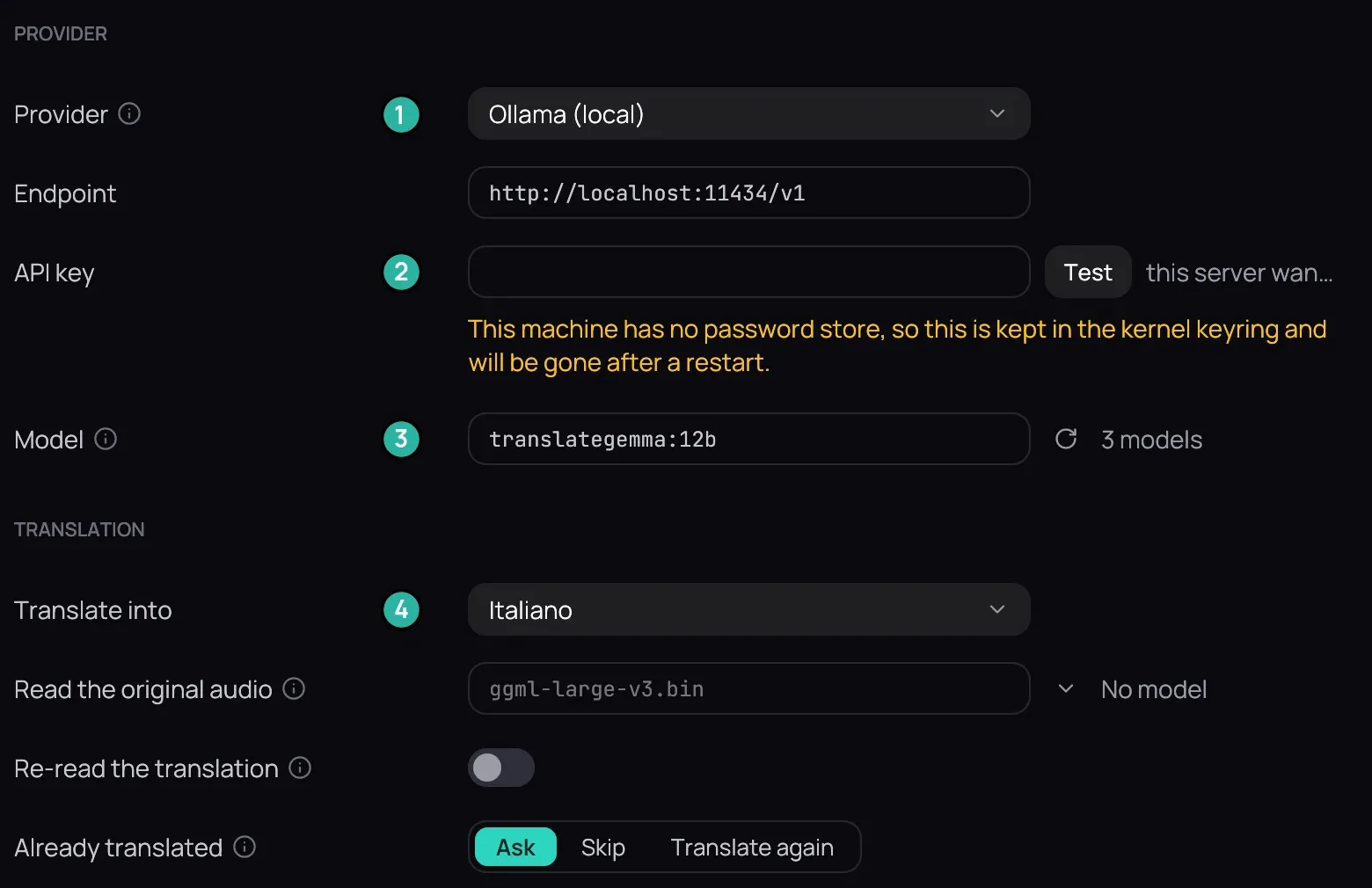
- Provider.
- API key.
- Model.
- Translate into.
How to use it
Section titled “How to use it”Set up a provider
Section titled “Set up a provider”- In Settings › Subtitles › Translation, choose a Provider, or Other… and type its Endpoint.
- Paste the API key if it needs one, and pick or type a Model.
- Choose a language in Translate into, such as Italian, and press Save. If your computer has no password store, a line under the key says it is kept only until you restart.
Translate
Section titled “Translate”
- With a subtitle file on screen, right-click the picture and open Subtitles › Tools.
- Choose Translate to Italian…, named after your Translate into language, or Translate while I watch to start where the film is.
Good to know
Section titled “Good to know”- A track inside the video has to be extracted first — see Loading subtitles. Which model to pick: Choosing a translation model.
- A panel at the top of the player shows the progress, with Cancel; the result is added under Beside the video.
- Lines that still fail after Kaveo retries are left in their original language.
- While the translation queue works, the player offers to pause it.
- Turn on Re-read the translation for a second pass that corrects mistranslated lines. It helps with a large model; with a small one on your own computer it can add as many mistakes as it fixes.