
Categories
What it is for
Section titled “What it is for”A category is a library of your own inside Kaveo — Movies, Series, or anything you like — naming the folders and kinds of content it holds, so you can go straight to the part of your collection you want.
How to use it
Section titled “How to use it”Visit a category
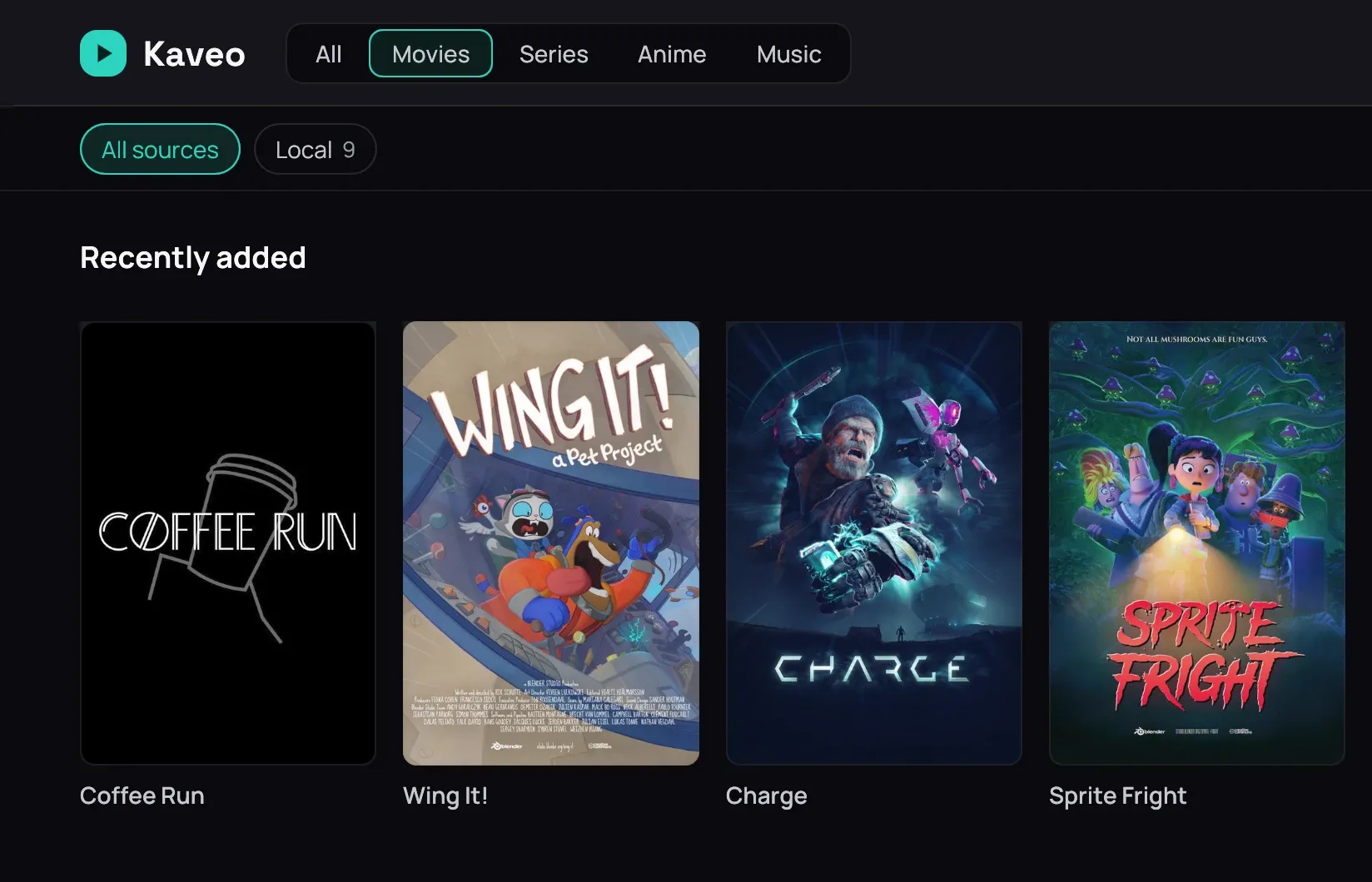
Section titled “Visit a category”- Click a category’s name at the top of the library.
- Browse its own rows, narrowed to what belongs there.
- Pick a source in the bar underneath to narrow further.
Create and manage one
Section titled “Create and manage one”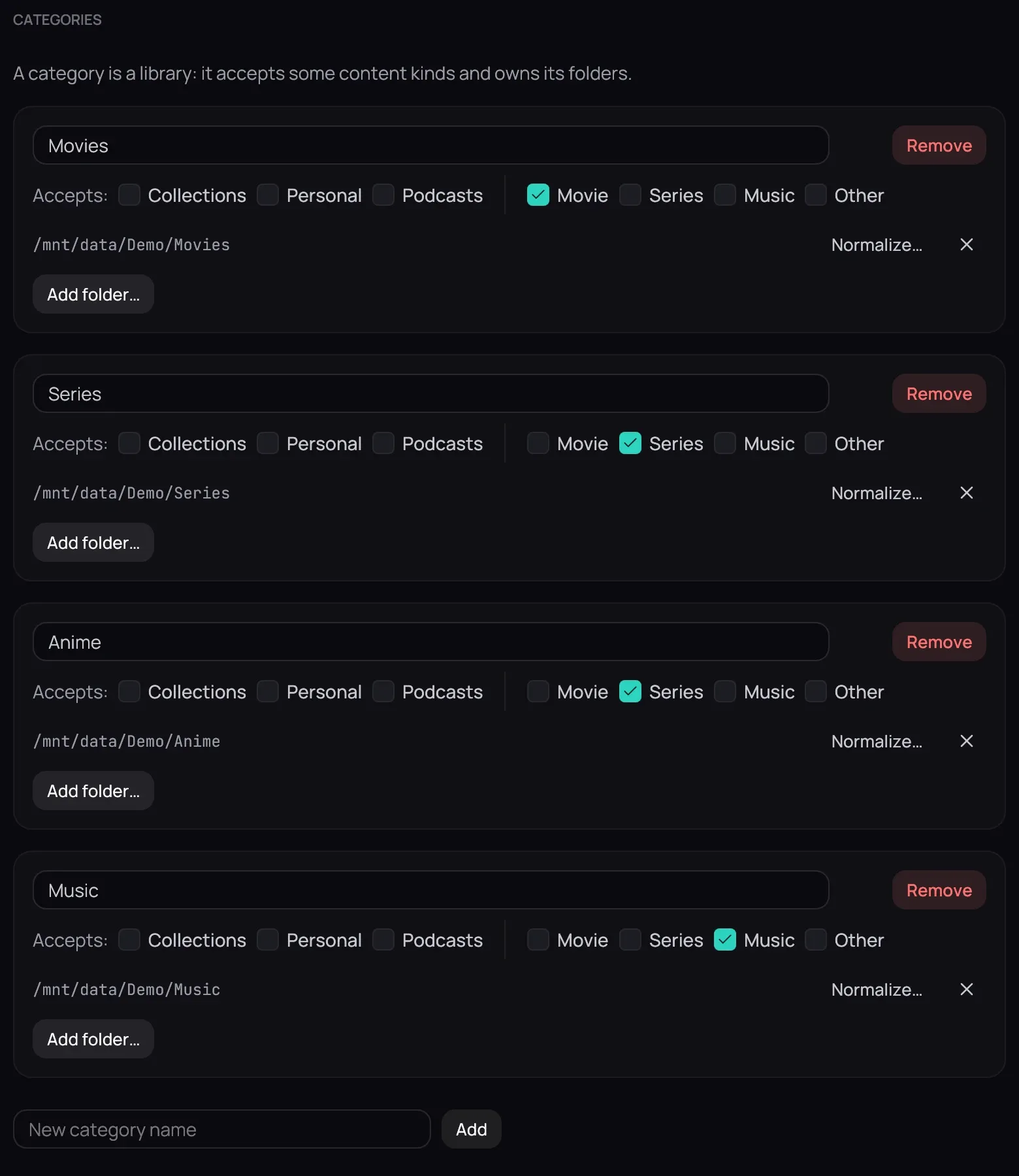
- Open Settings › Library › Categories, type a name under New category name, and click Add.
- Beside Accepts:, tick which kinds of content it holds — none ticked means everything.
- Click Add folder… to give it a folder to scan, or Remove beside its name to delete it.
Good to know
Section titled “Good to know”- Changes apply at once — there is no Save, and Revert cannot undo them.
- Removing a category never touches the files on disk.
- A server’s library is mapped into a category from its connection wizard.
- An empty category says why: a folder it cannot read is named, with Edit the category beside it.
- When the categories do not all fit at the top, the last ones fold into More; a long name is cut after a whole word.
- On a title’s page, the category it belongs to is the one lit at the top.