
Finding subtitles online
What it is for
Section titled “What it is for”When no subtitle exists beside the video or inside it, Kaveo can search OpenSubtitles for one in your language.
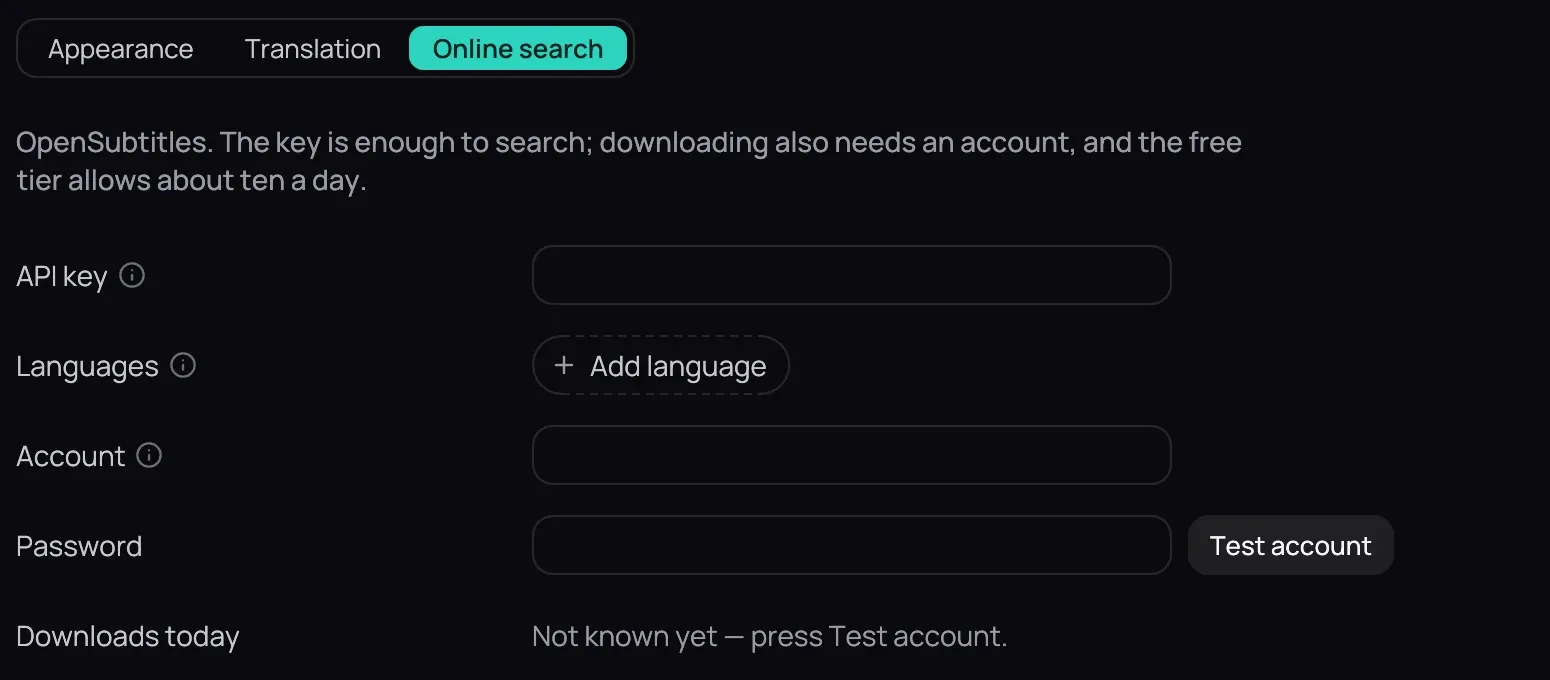
How to use it
Section titled “How to use it”Set it up
Section titled “Set it up”- Open Settings › Subtitles › Online search.
- Paste the key from your OpenSubtitles profile, under API Consumers, into API key.
- In Languages, list language codes separated by commas, most wanted first.
- Fill in Account and Password with your OpenSubtitles sign-in.
- Press Test account to check the name, password and key, then Save.
Downloads today shows what is left and when the count restarts.
If your computer has no password store, a line under the key and the password says they are kept only until you restart.
Search
Section titled “Search”- Right-click the picture, open Subtitles and choose Search online….
- To narrow the list, type release words or a language code into the Filter by release, group, quality… box.
- Click a result, then Use this — or double-click it. Kaveo downloads the subtitle, puts it on screen and adds it under Beside the video.
Good to know
Section titled “Good to know”- The key alone is enough to search; Use this also needs the account.
- For a language OpenSubtitles lacks, Kaveo also searches the older opensubtitles.org, whose files need no account.
- The key and password go to the credential store only when you press Save.
- Some files online have broken accents (è instead of è). Kaveo repairs them when it downloads them; for one downloaded earlier, use Fix accented letters under Subtitles › Tools.